Account Reconciliation
Reconciliation
2 views
Jun 12, 2026
Updated Sep 01, 2026
Account Reconciliation
Screen Location - Main Menu > Banking > Reconciliation
Overview
The Bank Reconciliation module allows users to reconcile company bank accounts against bank statements. It displays outstanding checks, deposits, and adjustments, lets you mark items as cleared, and calculates any unreconciled differences.
Account Reconciliation Screen
This is the main screen used to perform monthly bank reconciliations.
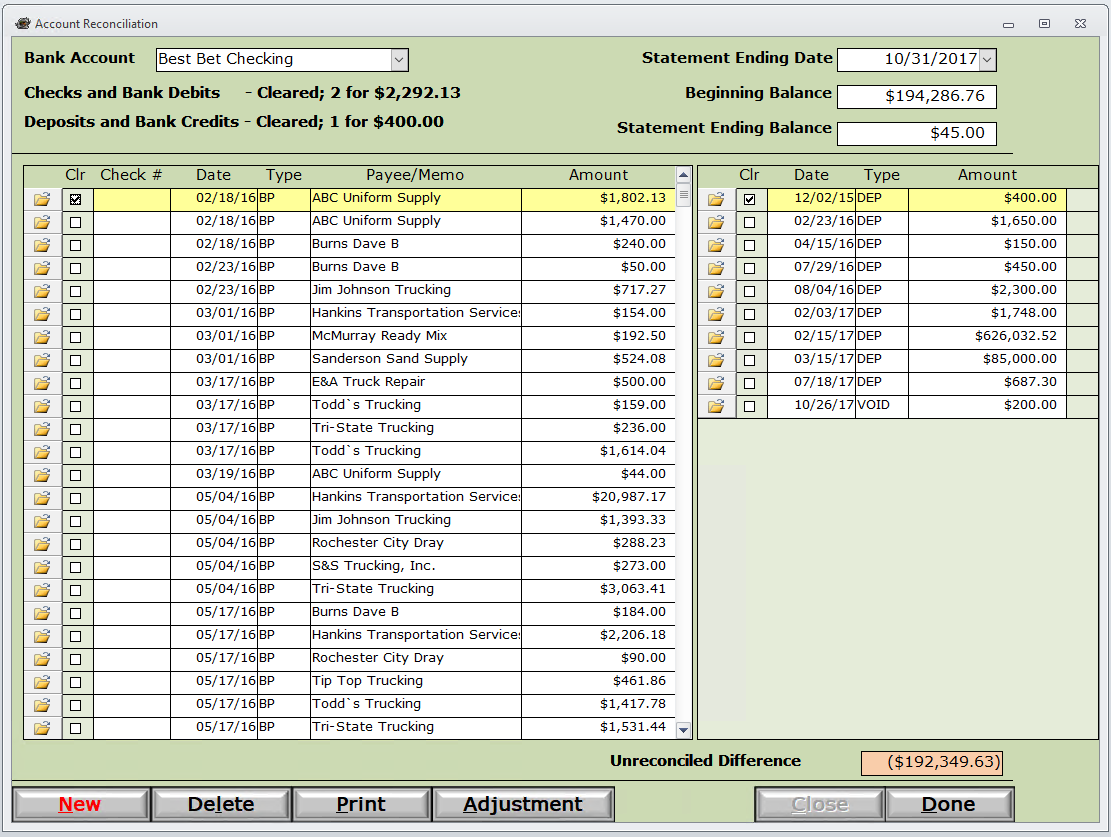
Key Elements:
- Bank Account (Dropdown): Select the bank account to reconcile.
- Statement Ending Date: Date of the bank statement being reconciled.
- Summary Totals:
- Checks and Bank Debits – Cleared count and total.
- Deposits and Bank Credits – Cleared count and total.
- Beginning Balance: System balance at the start of the reconciliation period.
- Statement Ending Balance: Balance per the bank statement.
Transaction Tables
- Left Table (Checks and Bank Debits): Lists unprocessed checks, bill pays, and withdrawals.
- Right Table (Deposits and Bank Credits): Lists items for the current statement being viewed or created.
- Clr Column: Checkbox to mark transactions as cleared on the bank statement.
Bottom Section:
- Unreconciled Difference: Shows the current difference between system records and the bank statement (should be $0.00 when fully reconciled).
Action Buttons:
- New: Add a new reconciliation adjustment.
- Delete: Delete a selected item.
- Print: Print the reconciliation report.
- Adjustment: Create a bank adjustment entry.
- Close / Done: Exit the reconciliation.
How to Access
- Navigate to Banking > Reconciliation.
- Select the Bank Account you want to reconcile.
- Enter the Statement Ending Date.
- Mark items as cleared and make necessary adjustments until the Unreconciled Difference is zero.
Common Uses
- Performing monthly bank statement reconciliations.
- Identifying and clearing outstanding checks and deposits.
- Recording bank fees, interest, or other adjustments.
- Resolving discrepancies between system balances and bank statements.
- Generating reconciliation reports for audit purposes.
Tips
- Continue marking items as cleared until the Unreconciled Difference reaches $0.00.
- Use the Adjustment button to record bank service charges, interest, or corrections.
- Save your work regularly — reconciliations can be completed over multiple sessions.
- Always verify the Beginning Balance and Statement Ending Balance are entered correctly.
Please call or Email us for Information on this topic.