Adjustments
Adjustments
4 views
Jun 12, 2026
Updated Sep 01, 2026
Adjustments
Screen Location - Main Menu > Banking > Adjustments
Overview
The Adjustments tab (part of the Check Writer / Bank Accounts module) is used to record bank adjustments, corrections, service charges, interest, or other non-check transactions that affect bank account balances. These adjustments are posted directly to the linked General Ledger account and appear in the Check Register.
Adjustments Screen
This screen allows you to create, view, edit, and manage bank account adjustments. It is accessed via the Adjustments tab when viewing a Bank Account.
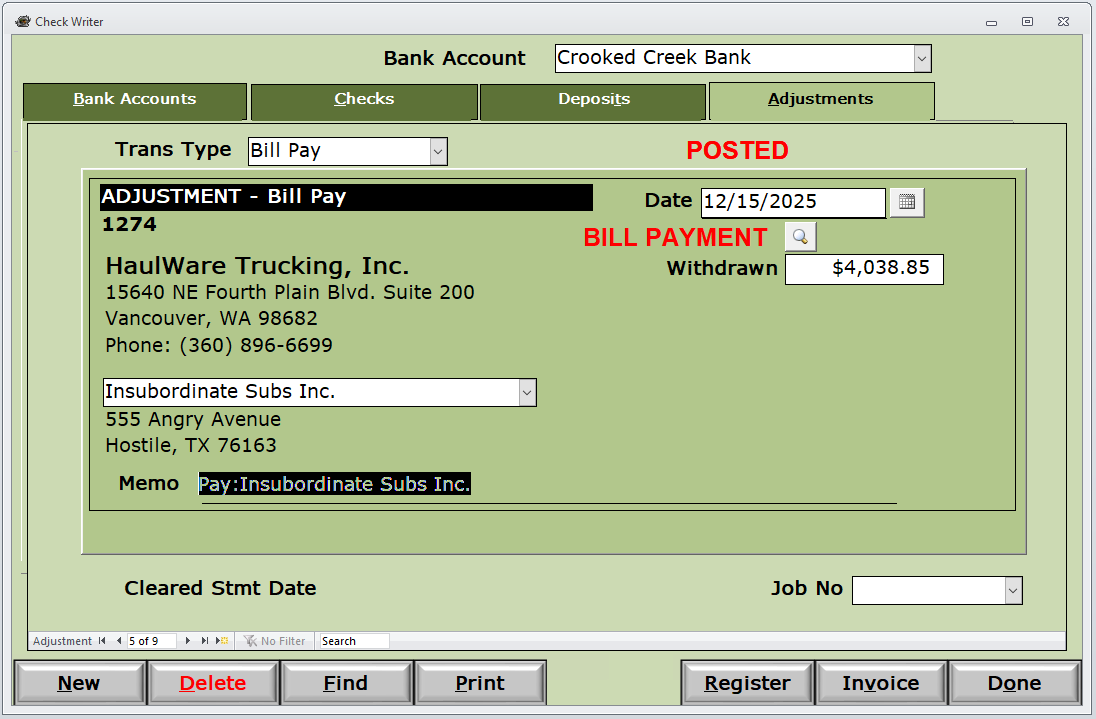
Key Elements:
- Bank Account (Dropdown): Select the bank account for the adjustment.
- Trans Type: Type of adjustment (Adjustment, Bank Charge, Bill Pay, EFT, Transfer).
- Adjustment Number (e.g., 1274) and status (POSTED).
- Date: Transaction date of the adjustment.
- Amount (Withdrawn / Deposited): The monetary amount of the adjustment.
- Payee / Vendor: The recipient or relevant party (if applicable).
- Memo: Description or reference for the adjustment.
- Cleared Stmt Date: Date the adjustment cleared on the bank statement (used for reconciliation).
- Job No: Optional job allocation for job costing.
Action Buttons:
- New: Create a new adjustment.
- Delete: Delete the current adjustment.
- Find: Search for existing adjustments.
- Print: Print the adjustment record.
- Register: Open the Check Register for the selected bank account.
- Invoice: Link or view associated invoices (if applicable).
- Done: Close the screen.
How to Access
- Navigate to Banking > Bank Accounts.
- Select the desired bank account from the dropdown.
- Click on the Adjustments tab.
- Use New to create a new adjustment or double-click an existing one to view/edit.
Common Uses
- Recording bank service charges and fees.
- Entering interest earned or other bank-initiated transactions.
- Making correcting adjustments to the bank balance.
- Recording bill payments or other disbursements processed outside the standard check process.
- Reconciling differences between the system and bank statements.
Tips
- Adjustments are posted directly to the General Ledger and appear in the Check Register.
- Use the Register button to review all transactions including adjustments for reconciliation.
- Ensure the Cleared Stmt Date is filled in after the item appears on the bank statement.
- Always include a clear Memo for audit and reconciliation purposes.
Please call or Email us for Information on this topic.