Bank Accounts
Bank Accounts
2 views
Jun 12, 2026
Updated Sep 01, 2026
Bank Accounts
Screen Location - Main Menu > Banking > Bank Accounts
Overview
The Bank Accounts module is used to set up and maintain all company bank accounts within the HaulWare system. This includes defining account details, linking them to General Ledger accounts, managing check numbering, and accessing related functions such as Checks, Deposits, Adjustments, and the Check Register.
Bank Account Maintenance Screen
This is the primary screen for viewing, creating, and editing bank account information.
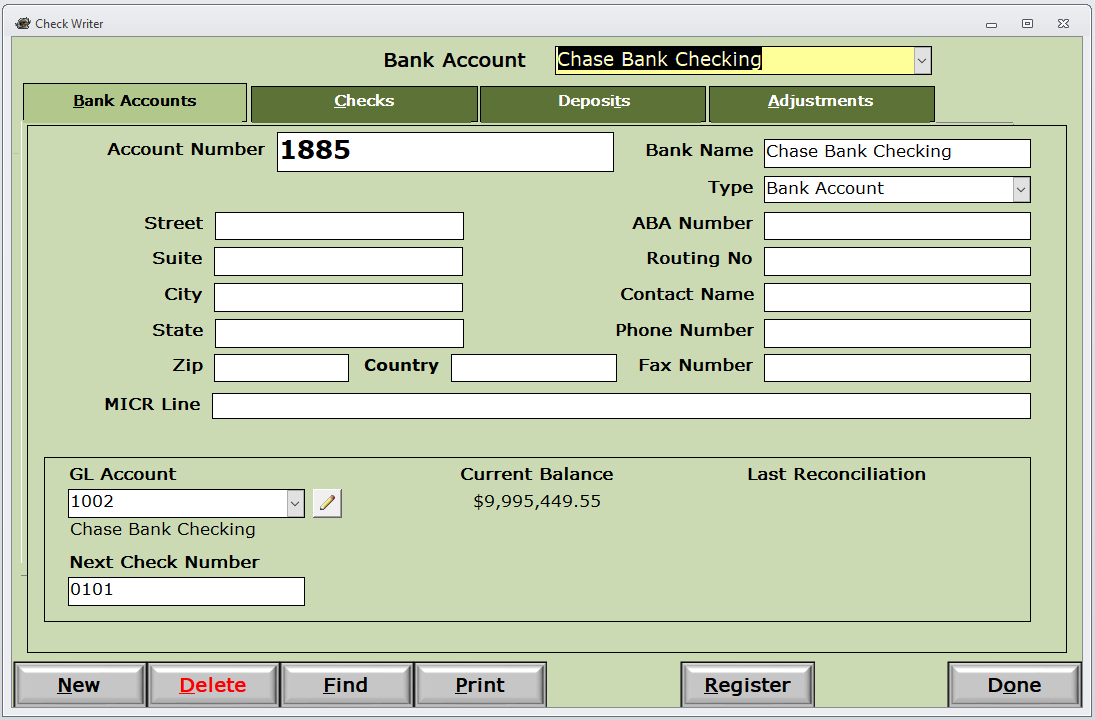
Key Elements:
- Bank Account (Dropdown): Select the bank account to view or edit.
- Tabs:
- Bank Accounts: Main setup information (shown above).
- Checks: Check-related settings and history.
- Deposits: Deposit tracking and settings.
- Adjustments: Bank adjustment entries.
- Account Information:
- Account Number
- Bank Name
- Street, City, State, Zip
- ABA Number / Routing No
- MICR Line
- Contact Name, Phone, Fax
- GL Account: The linked General Ledger account.
- Current Balance: Current balance of the bank account in the system.
- Last Reconciliation: Date of the most recent bank reconciliation.
- Next Check Number: The next check number to be used when printing checks.
Action Buttons:
- New: Create a new bank account.
- Delete: Remove a bank account (use with caution).
- Find: Search for bank accounts.
- Print: Print bank account information.
- Register: Open the Check Register for this bank account.
- Done: Close the screen.
How to Access
- Navigate to Banking > Bank Accounts.
- Select an existing bank account from the dropdown at the top, or click New to set up a new one.
- Click the Register button to view the full Check Register for the selected account.
Common Uses
- Setting up new bank accounts for the company.
- Updating bank contact and routing information.
- Linking bank accounts to the proper General Ledger accounts.
- Managing next check numbers.
- Accessing the Check Register for transaction review and reconciliation.
Tips
- Always ensure the GL Account is correctly linked so transactions flow properly to the General Ledger.
- The Next Check Number is automatically incremented when checks are printed through the system.
- Use the Register button to access detailed transaction history and perform bank reconciliations.
- Keep bank address and routing information up to date for accurate check printing and electronic payments.
Please call or Email us for Information on this topic.