Check Register
Register
3 views
Jun 12, 2026
Updated Sep 01, 2026
Check Register
Screen Location - Main Menu > Banking > Register
Overview
The Check Register provides a complete, chronological transaction history for a selected bank account. It displays all checks, deposits, bill payments, adjustments, and other activity, allowing users to review balances, mark items as cleared, and perform bank reconciliations.
Check Register Screen
This screen shows all transactions for the selected bank account in a detailed register format.
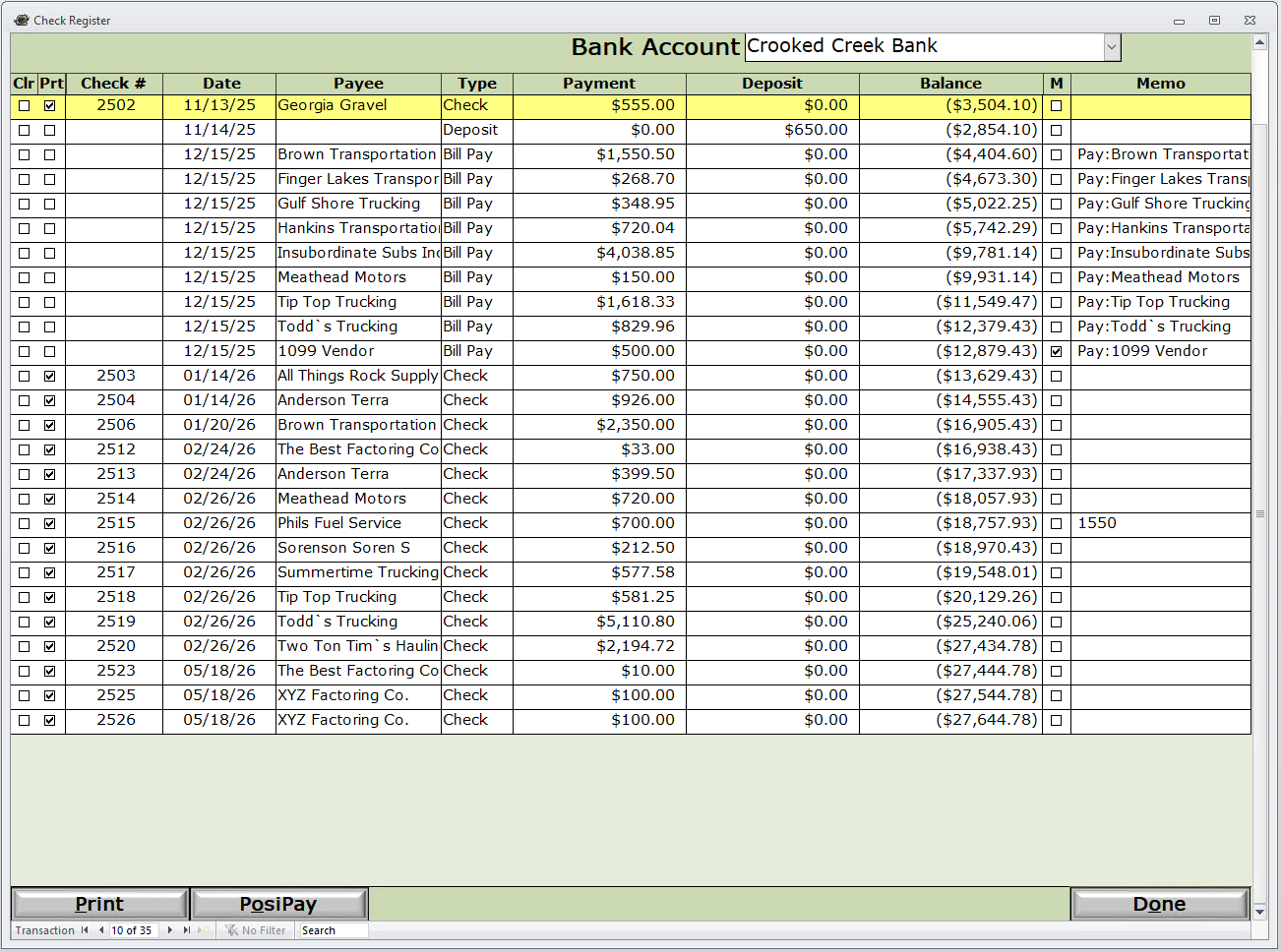
Key Elements:
- Bank Account (Dropdown): Switch between different company bank accounts.
- Transaction Columns:
- Clr: Checkbox to mark transaction as cleared (for reconciliation).
- Prt: Indicates if the check has been printed.
- Check #: Check number or reference for non-check transactions.
- Date: Transaction date.
- Payee: Vendor or recipient name.
- Type: Transaction type (Check, Deposit, Bill Pay, Adjustment, etc.).
- Payment: Outgoing amounts (checks, bill pays, adjustments).
- Deposit: Incoming amounts.
- Balance: Running balance after each transaction.
- M: Additional marker/flag.
- Memo: Description or reference notes.
Bottom Controls:
- Print: Print the check register report.
- PosiPay: Export or process positive pay file (for fraud prevention).
- Done: Close the register.
- Navigation controls, filter, and search bar at the bottom.
How to Access
- Navigate to Banking > Bank Accounts.
- Select the desired bank account.
- Click the Register button (available on Bank Accounts, Checks, Deposits, and Adjustments screens).
Common Uses
- Reviewing complete transaction history for a bank account.
- Performing monthly bank reconciliations (marking cleared items).
- Investigating specific payments or deposits.
- Printing register reports for accounting records.
- Exporting data for positive pay services.
- Verifying running balances and transaction details.
Tips
- Use the Clr column to mark transactions as cleared during bank reconciliation.
- The running Balance column helps quickly identify discrepancies.
- Yellow highlighting often indicates uncleared or unreconciled items.
- Use the search and filter options to locate specific transactions quickly.
- Transactions from Checks, Deposits, Adjustments, and Manual Journal Entries all appear in the register.
Please call or Email us for Information on this topic.