Collections
Visual Accounts Receivable
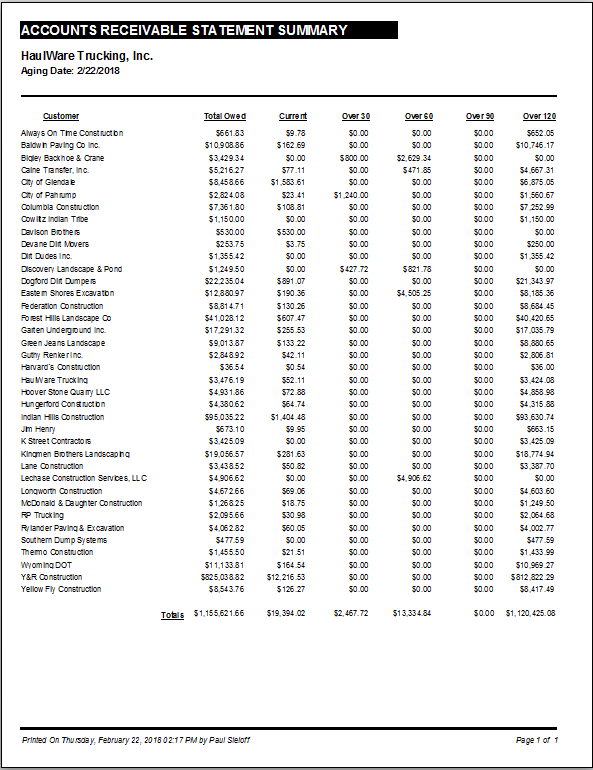
Use this option to assist in managing Accounts Receivable collections from your customers. Print a Customer Summary to use as a call sheet when making your collection calls.
Screen Location - Main Menu > Accounts Receivable > Collections
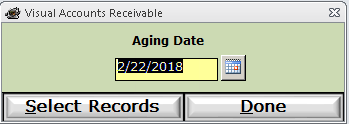
The aging date is set by default to today, and gives the Collections a point to begin the 30, 60, 90 day aging totals.
Click the Select Records button to continue.
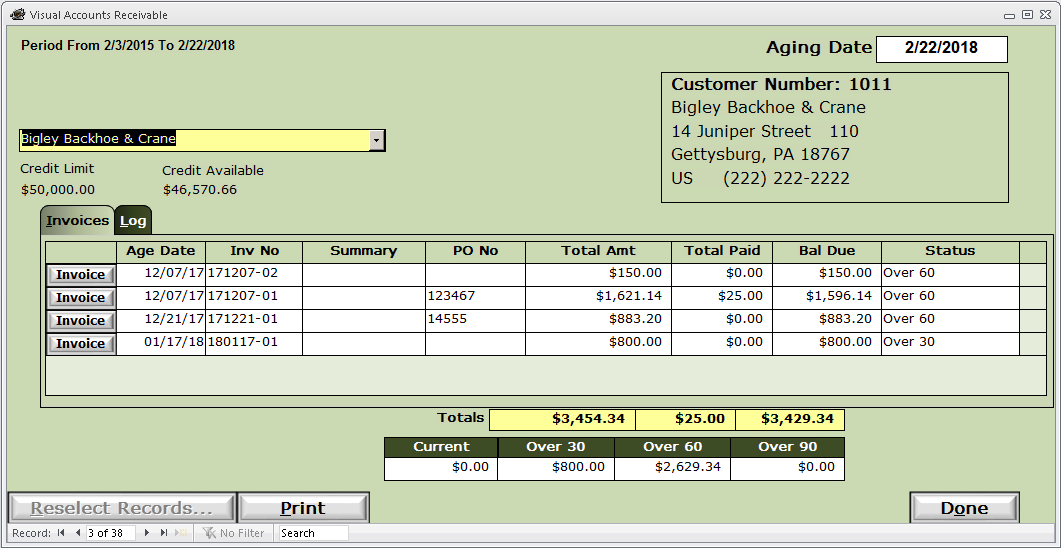
NOTE: The customer dropdown will only include the list of customers who have an outstanding balance.
Invoice button - Click to open the invoice or credit memo on that line. Use this to quickly open an invoice to print/email an invoice to your customer.
Reselect Records button - This will be enabled if you click the Invoice button on any invoice or credit memo. Click to close and reopen the screen so the aging totals will be recalculated, in case they may have changed while you had the invoice open.
Print button - Click to print a Customer Summary showing total 30, 60 and 90 day totals for each customer with an outstanding balance. Use this report as your guide to make your collections calls.
Log tab - Log collection call correspondence with your customers.
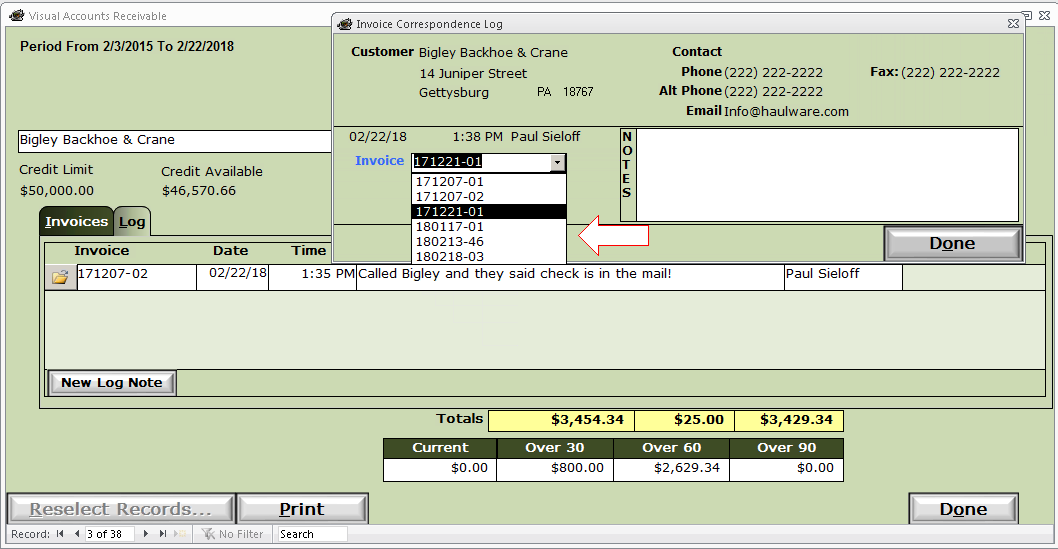
Click the New Log Note button
Invoice dropdown - Select the invoice the correspondence relates to.
Notes - Enter your notes about the call.
Click the Done button to save your log note.