Credit Memos
Credit Memos
HaulWare allows the process of unposting an invoice, correcting the invoice, then reposting. This flexibility makes credit memos to only be necessary in rare occasions. For example, if a customer due credit for something that is either not related to a specific invoice, or for an invoice that is in a closed Financial Period, then a credit memo is necessary.
Start Screen Location - Main Menu > Accounts Receivable > Credit Memos
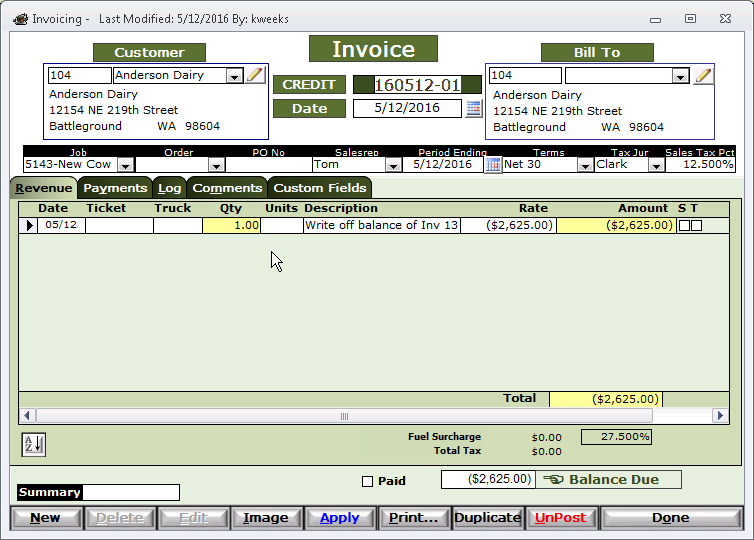
Customer - May be selected by entering the customer number in the upper left box or by selecting the customer by name in the drop down.
Bill To - Billing address for the customer. May be selected by entering the customer number in the upper left box or by selecting the customer by name in the drop down.
Credit Number - System-generated.
Credit Date - This date will determine what Financial Period the credit will be posted to in your General Ledger.
Job - Select the Job related to this credit memo.
Order - Select the Order related to this credit memo (if necessary).
The remaining fields are self-explanatory.
Revenue tab
Detail out your credit to your customer. Enter at least a quantity, description, and rate on the credit line. After your entry, the Amount field must display as a negative number in parentheses (). If you do not have a negative number in the Amount field, then this will not count as a credit. If it does not display as a negative number, delete the line and re-enter.
To delete a credit line, you will highlight empty box on the left-most end of the line, then click the Delete key on your keyboard, NOT the Delete button at the bottom!
To edit a credit line, double-click on the empty box on the left-most end of the line. Another window will display allowing you to edit any of the available fields, as well as the breakdown of the GL Distribution.
The S checkbox is checked when that revenue line has Fuel Surcharge applied to some or all of the revenue amount.
The T checkbox is checked when that revenue line has Sales Tax applied to some or all of the revenue amount. You must have a tax code selected in the Tax Jur field in the header for a sales tax to be calculated.
Below the line items and revenue subtotal are Fuel Surcharge and Sales Tax. If any of the S or T checkboxes are checked, you should have an amount in those associated totals. If you do not, please check your Fuel Surcharge and Sales Tax tables and be sure you have rates for a date range that your credit memo date is in.
Enter one or more of these credit lines to complete your credit memo.
Print/Email and Post your credit memo (as you would with an Invoice) to complete the process.
Apply Credit Memo
Note: Once the Credit Memo is posted, the Apply button will be available. Start by clicking the Apply button.
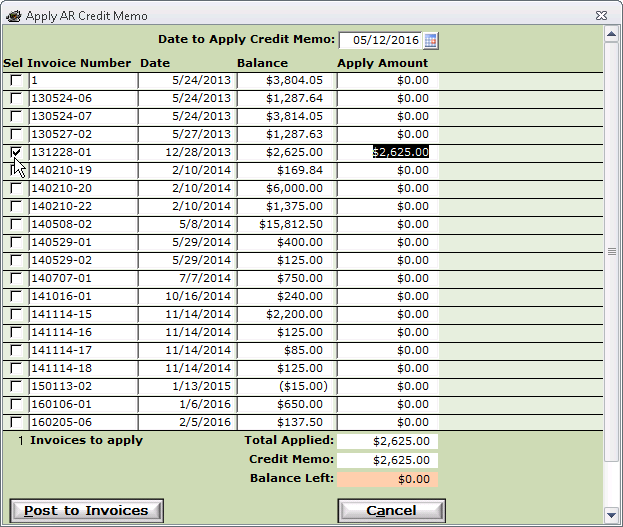
- Select one or more invoices to apply the credit memo to
- Do not apply more than what is available
- After selecting what invoices to apply the credit memo to, Click the Post to Invoices button.
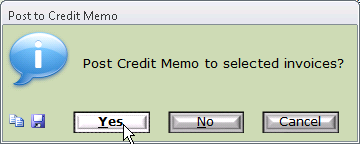
Click Yes to Post the Credit Memo to the Selected Invoices.
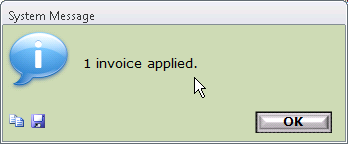
Click OK to complete to process.
You may check the Payments tab of the credit memo as well as the invoices to verify the credit memo application.
Log tab - Displays a list of system generated and manually entered log notes. See Log Notes for more information.
Comments tab - Area for single comment that appears on the printed credit memo.
Custom Fields tab - See Custom Fields for more information.