Customers
Customers
This is the profile of your customer that includes location, contact information, billing preferences, and an area for notes and custom fields. Customer records may not be deleted once used but can be flagged as Inactive when no longer needed.
Screen Location - Main Menu > Accounts Receivable > Customers
Customer information tab - General location information
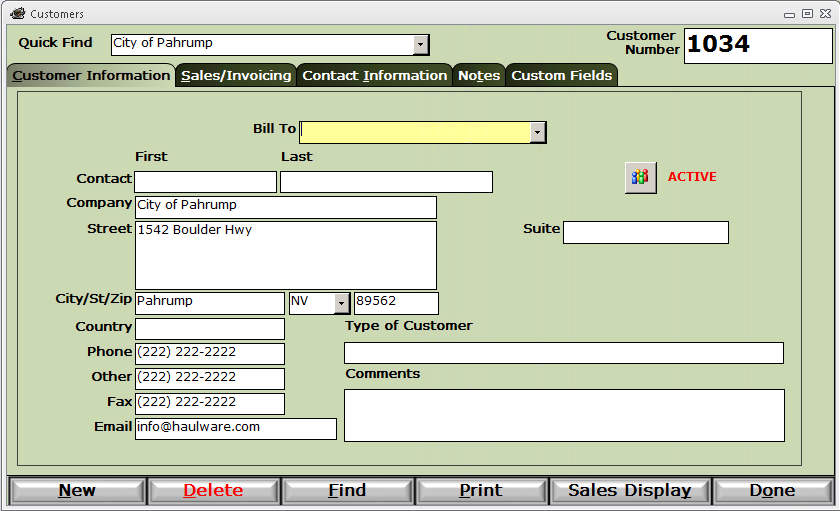
Bill To - If your customer has a bill-to address that is different than their customer address, you will have to have already set that record up in this same Customers option. Once set up, you can return to this record and select the Bill To from the dropdown list.
Active button - Click this to toggle the customer between an Active and Inactive status.
Type of Customer - This is a free-form entry field to describe the nature of the customer's business with a category or type.
The remaining fields should be self-explanatory.
Sales/Invoicing tab - Billing Preferences
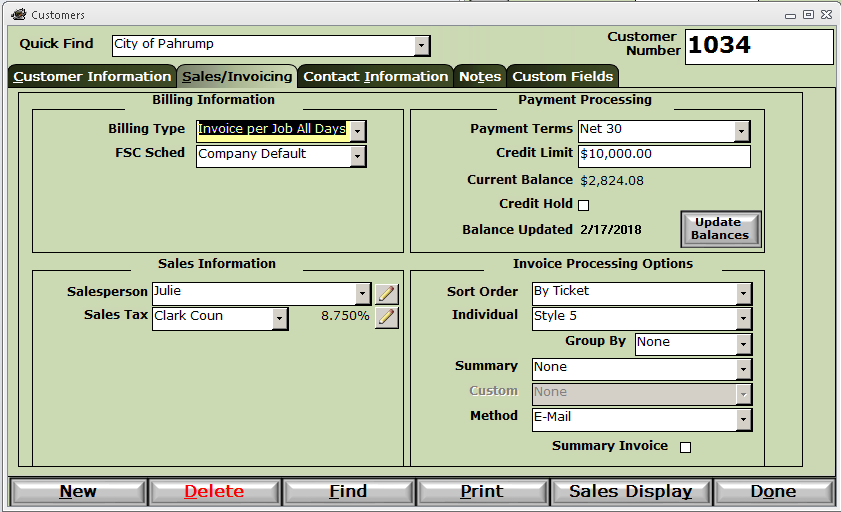
Billing options
Billing Type - An individual invoice to a customer may not contain more than one job. However, you may still the same job into multiple invoices. Choose how your customer would like to have their invoices divided.
- Invoice per Job All Days - (Default) - One invoice per job for all days in the billing period.
- Invoice per Job by Day - One invoice per job per day in the billing period.
- Invoice per Job Line All Days - One invoice per job line for all days in the billing period. Customer wants a separate invoice for each commodity or service.
- Invoice per Order - An order is essentially one material or service for a single day. Each order would have it's own invoice.
FSC Sched - Fuel Surcharge Schedule - Select from the dropdown list of schedules that were defined in the Fuel Surcharge option. When you check the FSC box on a Customer Billing item in your Job Line or Order setup, the rates in this schedule will be used.
Sales options
Salesperson - Select the default sales person that will be credited with sales to this customer. Set up sales people in Company Setup.
Sales Tax - Select the default sales tax code to be used when setting up a Job or Order for this customer.
Payment Processing options
Payment Terms - Select the default payment terms for this customer. Set up payment terms in Company Setup.
Credit Limit - Enter the credit limit for this customer. The credit limit is compared to the customer open balances when creating a manual invoice or an Order and will warn you if the open balance exceeds the credit limit. Bypassing this prompt will produce a log note in the order or invoice. Leave this field blank or zero if you do not want to credit limit this customer.
Credit Hold - Check this box warn you the customer is on Credit Hold when you create a manual invoice or an Order. Bypassing this prompt will produce a log note in the order or invoice.
Invoice Processing options
Sort Order - Allows you to control the order in which the invoice line items will appear on the invoice.
- By Ticket - In ticket# order
- By Tag + Ticket - First by tag#, then ticket# within tag#
- By Truck + Ticket - First by truck#, then by ticket# within truck#
- By Ticket Date + Ticket - First by ticket date, then tiicket#
- By Ticket Date + Truck + Ticket - First by ticket date, then truck#, then ticket#
Individual - This is one of the invoice print styles you want to use for this customer. Style 1 is default but please try them all from the Print button in the Invoices option.
Group By - Not available for all print styles! This will all you to subtotal your invoice line items by
- Day - Subtotals all tickets for within a ticket date
- Truck# - Subtotals all tickets for a truck#
- Commodity - Subtotals all tickets for a commodity
Summary - If the customer requires a summary invoice, select the print style from the drop down. Be sure to check the Summary Invoice check box below.
Custom - Requires custom programming. If HaulWare has provided a custom invoice print style, this option will allow you to select the custom style.
Method - When Batch Posting your invoices, this option will determine if the invoice(s) will be printed or emailed.
Summary Invoice - Check this box to generate a summary invoice number for all invoices posted together in Batch Posting. Use this option with the Summary print style option above.
Contact Information tab - To add a new contact, click the open folder icon on the last empty line. Most fields are self-explanatory.
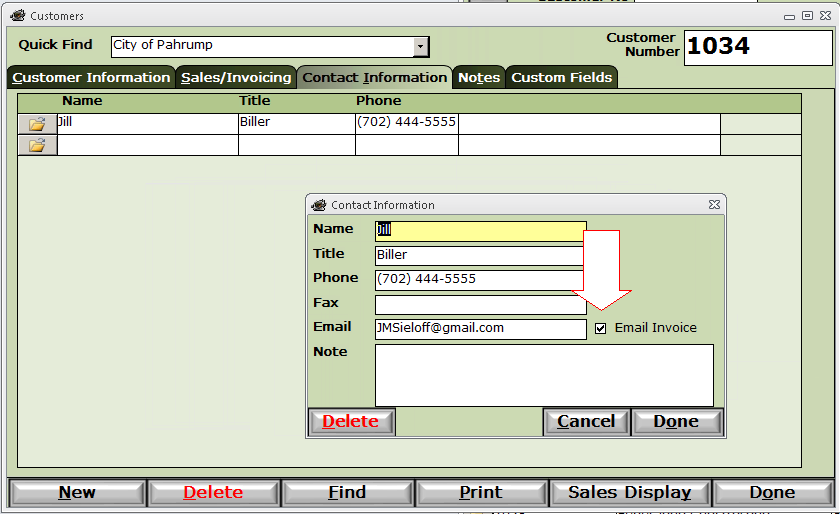
Email Invoice - Check this box if you have entered an email address, and you wish this contact will receive emailed invoices produced in the Invoice Batch Post option.
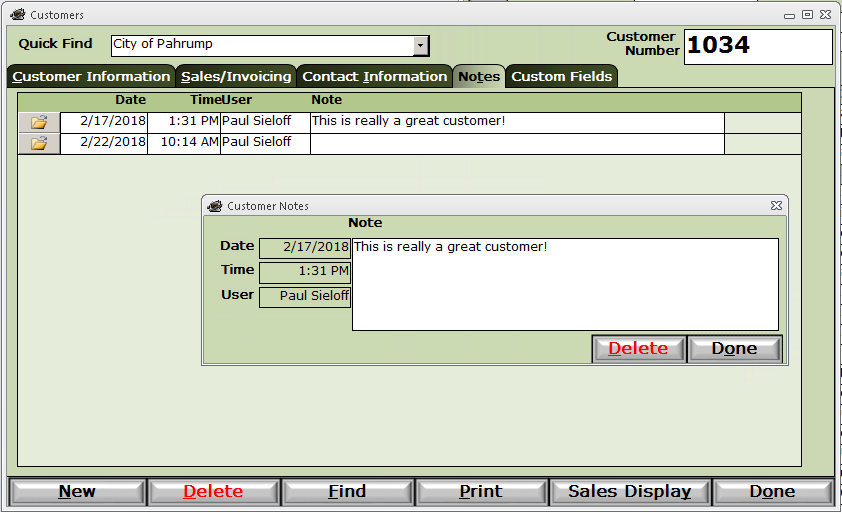
Notes tab - To add a new note, click the open folder icon on the last empty line. Fill in the Note and click Done to save. These notes may be edited and deleted if necessary.
Custom Fields tab - See Custom Fields for more information.