Driver Hourly Timesheet Entry
Timesheet Entry
2 views
Mar 18, 2026
Updated Sep 01, 2026
Driver Time
Screen Location - Main Menu > Tickets and Time > Timesheet Entry
- Double click on the menu item: Timesheet Entry to open the Driver Timesheet Entry start screen.
- Sort the Start screen by clicking on the column headings.
- Filter the start screen by entering a value in the field above the column headings.
- Open an existing timesheet by clicking on the file folder to the left of the record.
- Begin a New Timesheet by clicking the New Button.
- You can review all timesheet records that are in entry by clicking the Review Button
- Manage Prevailing Wage pay periods by hitting the PW Payroll Button
Entering a New Timesheet
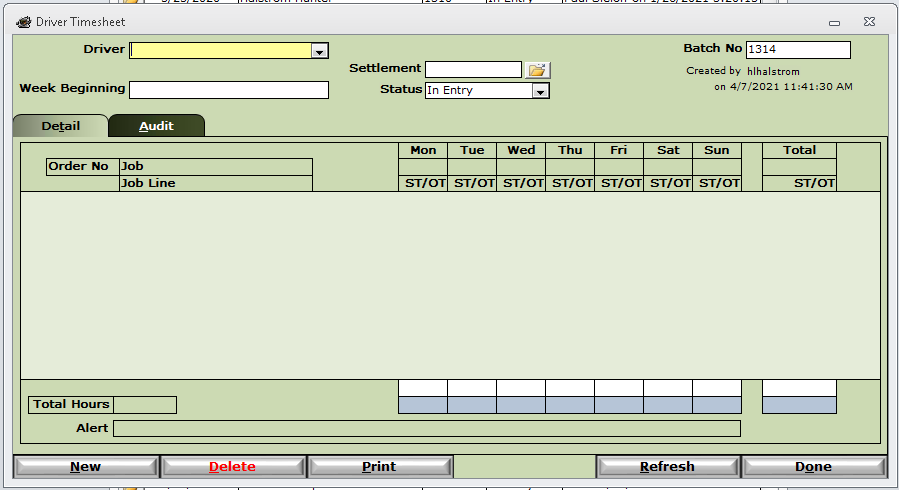
- Driver - This defines the driver who this timesheet entry belongs to.
- Week Beginning - Determines the beginning day of the work week.
- Note: The default start day can be changed at any time at (Setup > Company Setup > Switches > PayPeriodBeginningDate). Set the value of the Switch accordingly. 1=Sun, 2=Mon, 3=Tue, 4=Wed, 5=Thu, 6=Fri, 7=Sat.
- Settlement - If timesheet entries are used to create a Driver Settlement, the settlement number will be populated here. Also, use the open folder icon to quickly open associated settlement.
- Status - The status of this timesheet entry. Note: You may change this status to any of the option except for "Posted" the system will change the status to "Posted" when the timesheet in question has been processed to a Driver Settlement, and the settlement has been posted.
- Batch No. - The batch number is assigned by the system in sequential order.
- Note: To change the batch number, double click on the batch number field and the change number dialog will pop up. The batch number can be changed to whatever unique number works for you.
Detail Tab
Once you have a Driver selected and have a valid date in the Week Beginning field, you will then be able to start entering time entries.
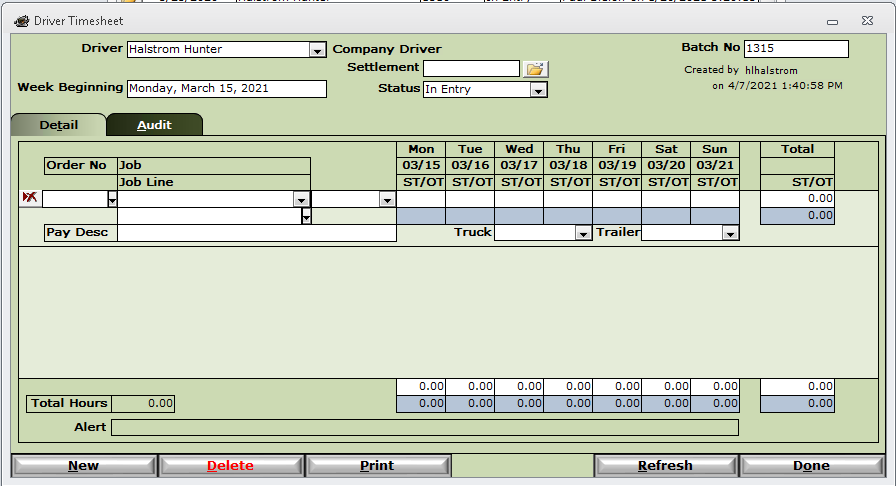
- Order No - The order that this time entry is associated with. When selected this will automatically fill Job and Job Line accordingly.
- Note: this will only show orders that the driver has been dispatched onto during the week that is specified.
- Job - The job that this time entry is associated with.
- Job Line - The job line this time entry is associated with.
- Pay Type - The pay type to use for this time entry.
- Note: this will only populate with valid Pay Types in regards to the driver.
- Pay Desc - A free form field to describe this time entry (optional)
- Truck - The truck used during this time entry
- Trailer - The trailer used on this time entry
Every day of the week is given two fields, Standard Time (white) and the other Over Time (blue). The time is in decimal form, and not hours.minutes. (ex. one and a half hours would be 1.5)
At the bottom of the page you can find total hours for the entire time sheet, and every day of the week individually. this includes separating Standard Time (ST) and Over Time (OT)