Driver Settlements
Driver Settlements
Overview
This option contains driver settlements for both company drivers and subcontractors. Typically, they are "system generated" using the Create Driver Settlements option detailing pay in ticket and timesheet detail. Subcontractor (1099) drivers may be paid directly from HaulWare while employee (W2) drivers will be paid by your outside payroll service (Quickbooks Payroll, ADP, etc.).
Deductions may be applied to settlements, usually for subcontractors, who owe you for using your fuel account, repairs, or advances of any type. Company driver deductions, such as tax withholding, garnishments, etc., are generally withheld in their payroll check using your outside payroll service.
Settlements must be printed (or emailed), and then Posted to complete the process. You may do this individually for each settlement, or use the Settlement Batch Post option to process all settlements at once. TIP: Process settlements individually for the first few pay periods until you are confident everything is processing properly.
IMPORTANT! Complete the processing procedure every pay period. This includes applying deductions if necessary, printing and posting. DO NOT leave settlements UnPosted after paying the drivers. You will risk mixing already paid settlement details with new unpaid details.
Screen Location - Main Menu > Tickets and Time > Driver Settlements
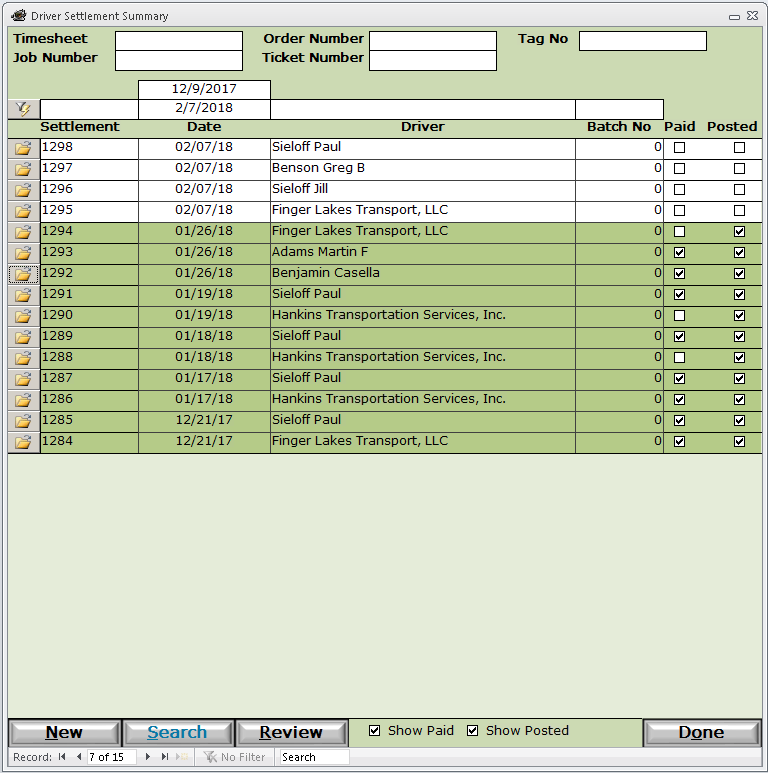
Use this start screen to view your settlements for any date range, with checkbox filters to show, or not show Paid and Posted settlements. TIP: When processing new settlements, click the Review button to navigate the unposted settlements using the left right arrows in the lower left corner of the window.
Settlements must be printed (or emailed), and then Posted to complete the process. You may do this individually for each settlement, or use the Settlement Batch Post option to process all settlements at once. TIP: Process settlements individually for the first few pay periods until you are confident everything is processing properly.
Click on the Open Folder icon to process a Settlement individually.
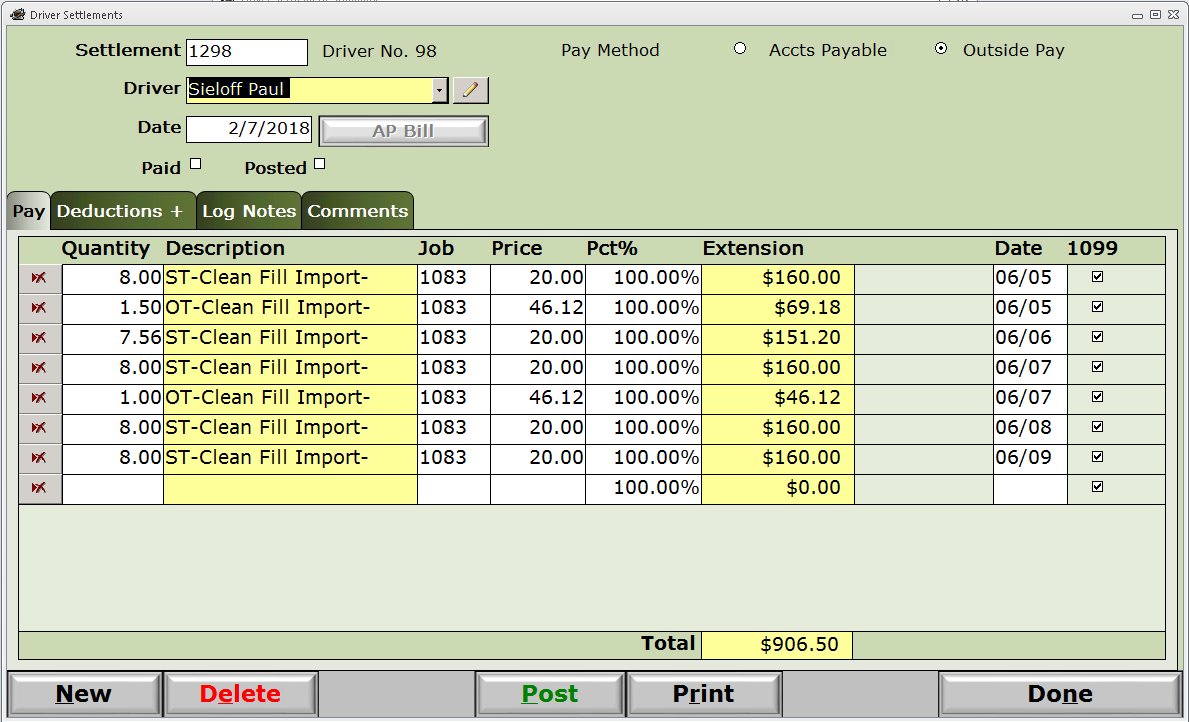
Settlement - System generated settlement number.
Driver No. - System generated driver number.
Pay Method - This option is selected automatically by the system depending on the driver and indicates how the driver will receive their payment for this settlement.
- Subcontractors will be paid with an Accounts Payable check from HaulWare and will have Accts Payable selected as the Pay Method for this settlement.
- Company drivers will be paid with a payroll check from an outside payroll system and will have Outside Pay selected as the Pay Method for this settlement.
Driver - Driver name and pencil box to open Driver details
Date - Settlement Date.
AP Bill button - This will be enabled when the settlement Pay Method is Accts Payable, and the Post button has been clicked. Click to open the related AP bill created by this settlement posting.
Paid checkbox - System maintained. When the Pay Method is
- Accts Payable, then will be checked when the related AP bill is paid in full.
- Pay Outside, then will be checked immediately when the settlement is posted.
Posted checkbox - System maintained. This will be checked when the settlement is posted.
Pay tab - Displays the existing settlement lines showing quantity, description and extended amount.
- Settlement lines produced by the Create Settlements option may not be edited, but may be deleted.
- If deleting a settlement line with associated Auto Deductions, then all related lines will be removed together.
- Deleting the last line of a settlement will delete the entire settlement.
- Settlement lines may be manually entered to add more pay not related to a specific job or ticket.
Each line on the Pay tab contains the following columns:
Quantity - This will be the quantity of the unit of measure from the Job line. Typically hours, tons or loads.
Description - Also from Job line.
Job - Manually entered lines may have the Job number but does not affect the cost on that Job. Only system generated settlement lines displaying the Job number will be included in the reporting system.
Price - Rate per unit of measure (hour, ton or load).
Pct% - Percentage allowed from the Quantity * Price subtotal.
Extension - Result of (Quantity * Price) * Pct%.
Date - This will be the ticket date on system generated settlement lines.
Deductions tab - Deductions come from a variety of sources.
- AP Bills - When paying a vendor for some expense for a subcontractor (repair, etc), you can identify that subcontractor to create a deduction that can be taken on a future settlement.
- FAM - Fuel Account Management - Fuel receipts entered may be identified as Advances for a subcontractor. These fuel advances will appear as an advance with a FAM#.
- Manual Journal Entry - You may identify a driver in a journal entry. For example, you sold a piece of equipment to a subcontractor. Payment is by deductions of future settlements. The manual journal entry would reduce the asset account but create the advance.
- Manual Check - Similar to AP Bills, you may identify a driver on the GL distribution of a manual check to create an advance to that driver. For example, a $500 cash loan to a driver. Creating the manual check, reduces cash, creates the advance to be taken as deductions on future settlements.
- Manual Deduction - A deduction may be created as a percentage of an amount rather than a fixed amount. In addition, a deduction can have no upper limit making it possible to take it on every settlement. For example, a Dispatch Fee, Broker Fee or Commission might be a percentage of the driver's pay that is deducted. This amount would be commission income to you.
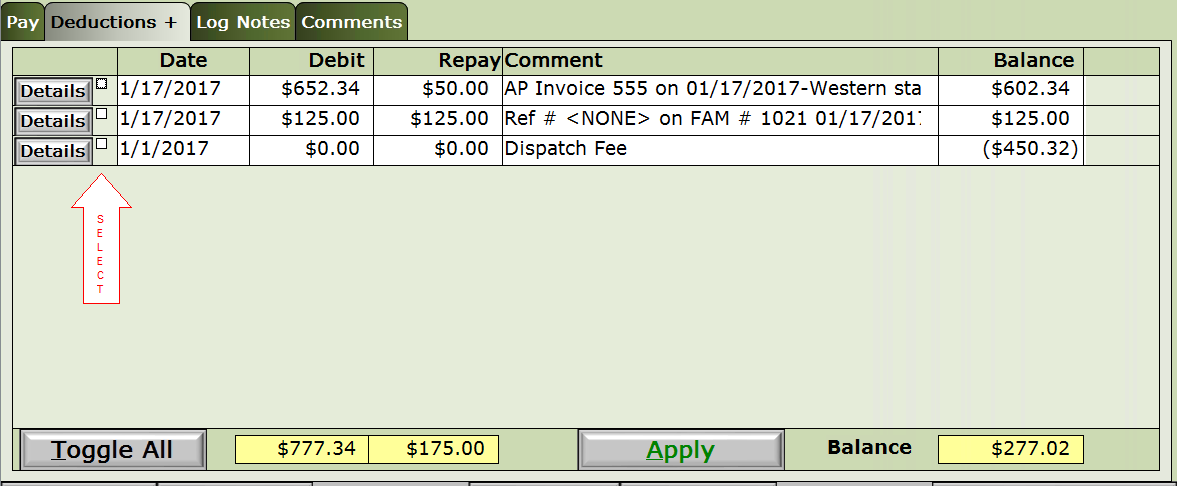
Select checkbox - To "take" a deduction or add this deduction to a settlement Pay tab, click one or more of the checkboxes on the left side, then click the Apply button.
Manual Deduction - There may be times when you want to create a Recurring deduction to be taken on settlements. For example, you want to charge your subcontractors occasionally for parking, or Yard Rental.
- From the main menu, select Files > Drivers > Deductions tab
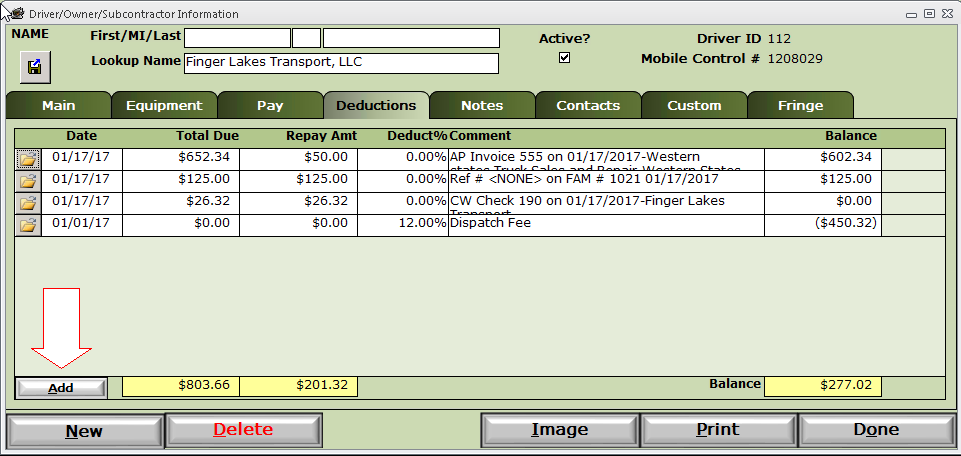
- Click the Add Deduction button in the lower left corner.
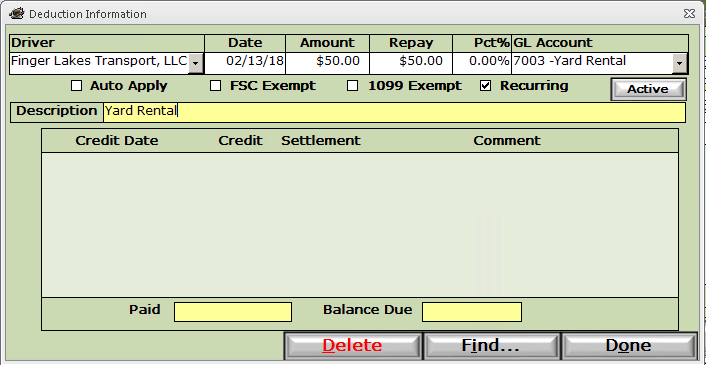
Driver - This will be automatically filled in by the system.
Date - Deduction create date.
Amount - Total amount of the deduction. For example, if your deduction was not Recurring, the deduction would expire after being taken up to this Amount.
Repay - If you want the driver to be deducted in smaller portions instead of the full Amount, then enter this portion here.
Pct% - This field primarily applies to Auto Deductions.
GL Account - This is the account to be used as the debit account when Posting a subcontractor settlement.
Auto Apply - Check if you DO want this deduction to be taken automatically. See Auto Deduction for more information.
FSC Exempt - Check if you DON'T want the Fuel Surcharge portion of the pay to be included when calculating the deduction.
1099 Exempt - Check if you DON'T want the deduction to be included on the subcontractor 1099.
Recurring - Check if you DO want the deduction always be available with no upper limit.
Active button - This button is labeled Active when the deduction is active. Click the button to inactivate the deduction and make it unavailable from the driver settlement. The button label will show Inactive.
Description - This is the description on the deduction line of the settlement.
In our example above, we created a Recurring manual deduction, to be available whenever we wish to take on a driver settlement.
- To take this deduction, open an unposted settlement for this driver, click the Deductions tab
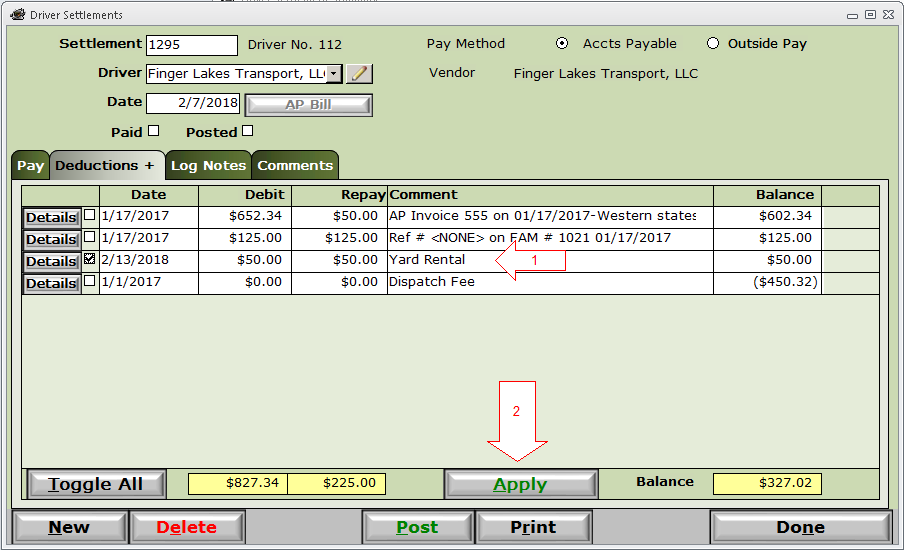
- Click the check box on the deduction line to be taken.
- Click the Apply button.
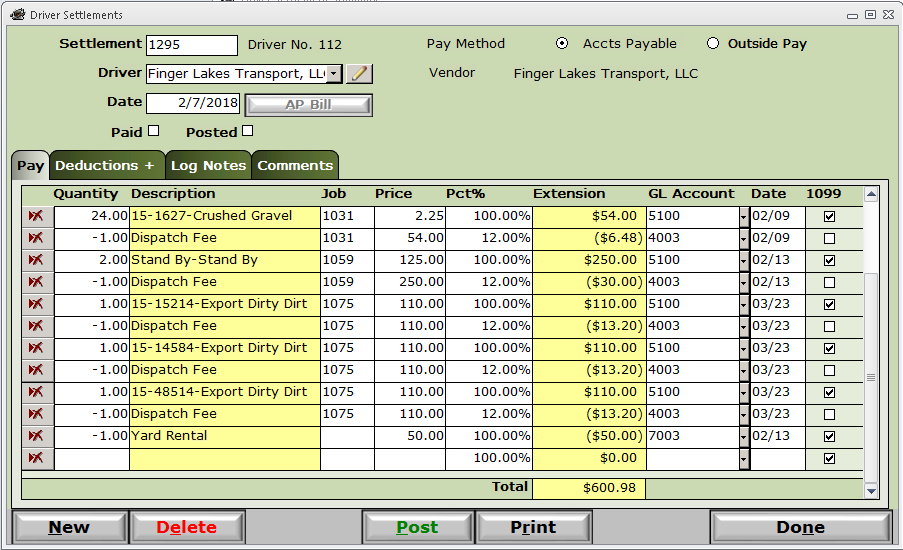
- Click the Pay tab and scroll to the last line of the settlement
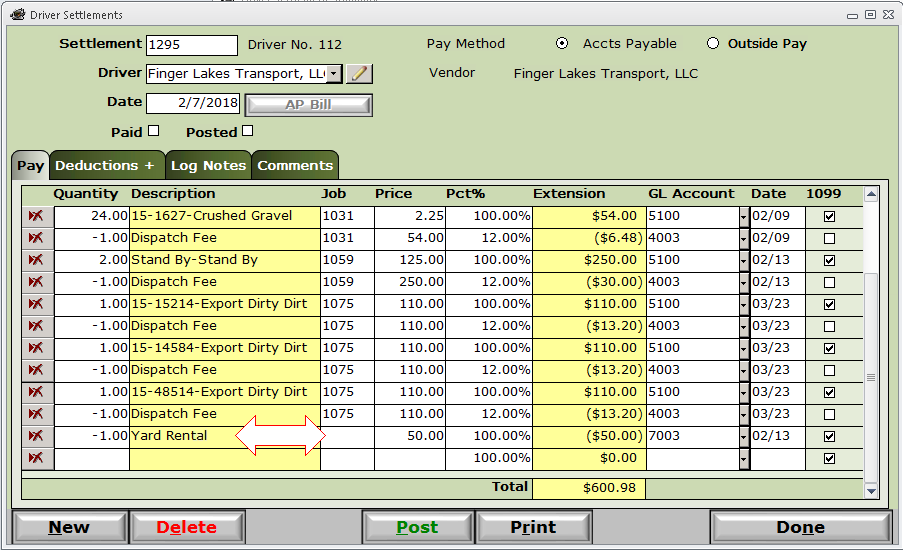
Notice the deduction taken on the last line of the settlement.
Auto Deductions - Some deductions are taken automatically whenever a certain Pay Type is used to pay the driver. For example, paying your subcontractor 100% of the revenue, then creating a deduction each time that pay type is used to take a commission or broker fee.
To set up an Auto Deduction:
- Set up a Pay Type with Auto Deduct checked.
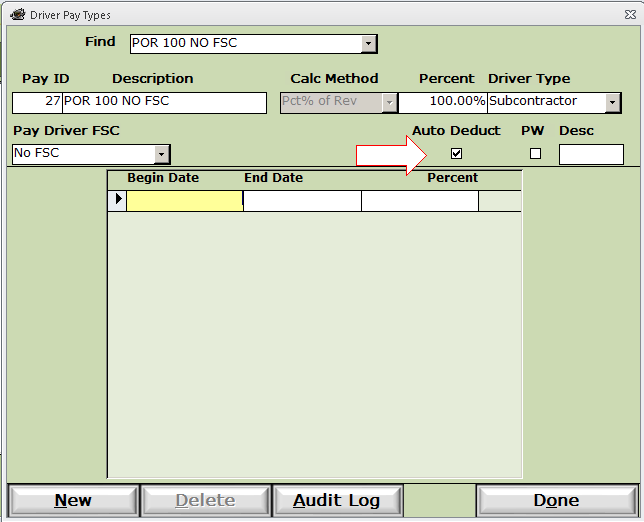
- Now open the Driver record for the driver this applies to and click the Deductions tab.
- See Manual Deduction for set up information.
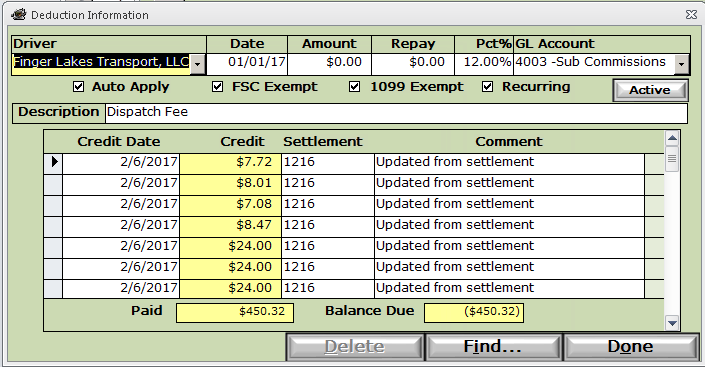
We have checked Auto Apply, checked Recurring, and indicated a Pct% of 12% to be deducted from the pay line when using the Auto Deduct pay type. Since this is not a fixed amount, we left the Amount and Repay fields at zero.
Notice below when you generate your settlement, a line will be generated for your pay, and another for each Auto Deduction (Dispatch Fee in this example) linked to that Auto Deduct pay type.