How do I setup my Vendor to receive a remittance automatically via email?
Vendors
1 views
Mar 21, 2026
Updated Sep 01, 2026
When paying AP Bills you can now email a Remittance Advice automatically. You need to configure the following:
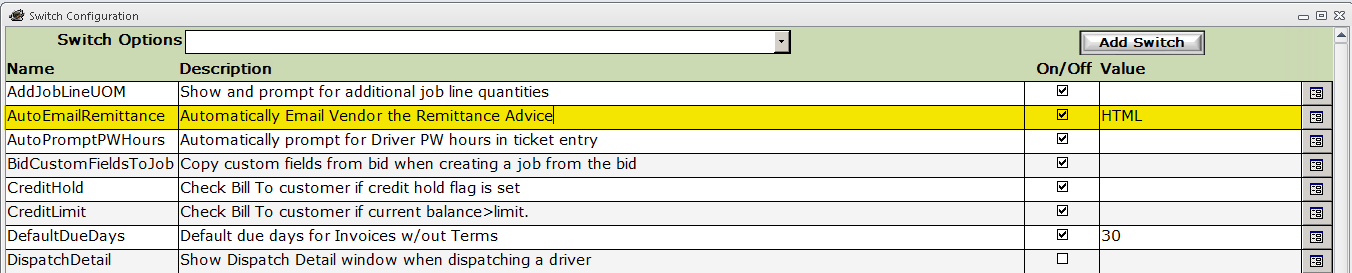
NOTE: Any value other than HTML (i.e. TEXT) will produce a plain-text email message.
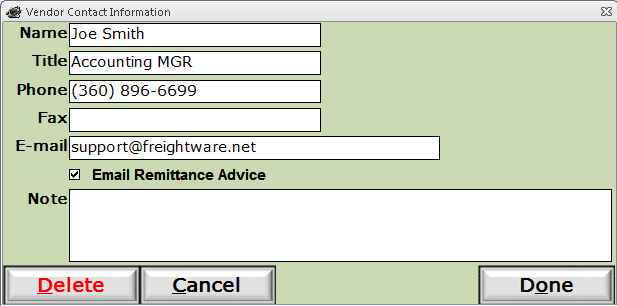
- On the Vendors Contact Information: Make sure they have a valid email address and the Email Remittance Advice is Checked.
You can modify the templates used for the email in: Setup > Custom Messages:
- eRemittanceHeader
- eRemittanceBody
- eRemittanceFooter
Here is the list of Field Codes you can use in your templates:
- {{CompanyName}} = Your Company Name
- {{CompanySlogan}} = Your Company Logo
- {{CompanyAddress}} = Your Company Address
- {{CompanySuite}} = Your Company Suite Number
- {{CompanyCityStateZip}} = Your Company City, State ZipCode
- {{CompanyPhone}} = Your Company Phone Number
- {{CompanyFax}} = Your Company Fax Number
- {{CompanyEmail}} = Your Company Email Address
- {{SupplierName}} = The Supplier's Name
- {{Salutation}} = The Name of the Supplier Contact
- {{SupplierAddress}} = The Supplier's Address
- {{SupplierSuite}} = The Supplier's Suite Number
- {{SupplierCity}} = The Supplier's City
- {{SupplierState}} = The Supplier's State
- {{SupplierZip}} = The Supplier's ZipCode
- {{CheckNumber}} = The Check Number
- {{TransType}} = Either Check or Adjustment Type i.e EFT
- {{TransDate}} = Check or Adjustment Date
- {{TransAmount}} = Check or Adjustment Amount
- {{Payee}} = Check Payee Name
- {{InvoiceDetails}} = A Table of What Was Paid (Invoice Number, Invoice Date, Due Date, and Paid Amount.