How to Add, Edit, or Delete the Chart of Accounts
Chart of Accounts
2 views
Jun 10, 2026
Updated Sep 01, 2026
How do I Add, Delete or Edit the Chart of Accounts?
Screen Location Main Menu > Accounting > Chart of Accounts
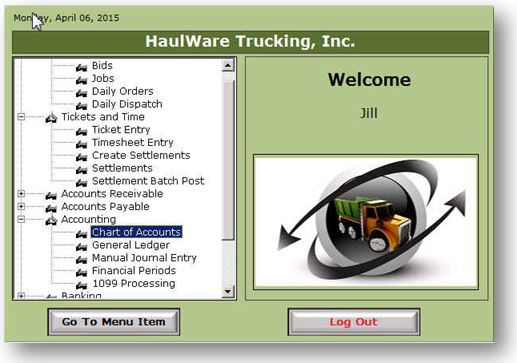
Chart of Accounts
Your new HaulWare database comes either with a standard Chart of Accounts which can be customized for your company or upon request we can import your own existing. Open the Chart of Accounts menu item to edit or view.
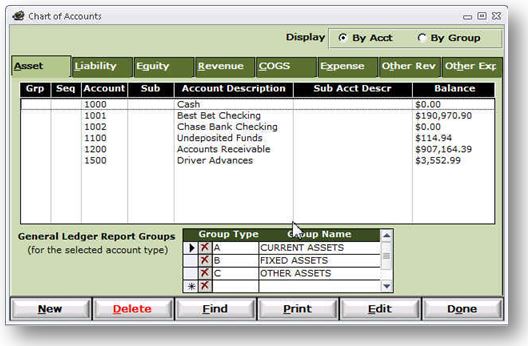
- Buttons.
- New– Add a new account
- Delete – Delete an existing account. Note – Only accounts that have not been used in a transaction can be deleted.
- Find – Search for an existing account
- Print – Print a listing of your existing accounts.
- Edit – Edit and existing account.
- Budget – The budget feature is currently under construction
- Done – Close the Chart of Accounts window.
- Groups
- Each Account type (Assets, Liability, Equity, Revenue, COGS, Expense, Other Revenue and Other Expense) has a grouping capability. This is optional. By assigning the accounts in each account type a group they will appear grouped and subtotaled together on either the Balance Sheet or Income Statement.
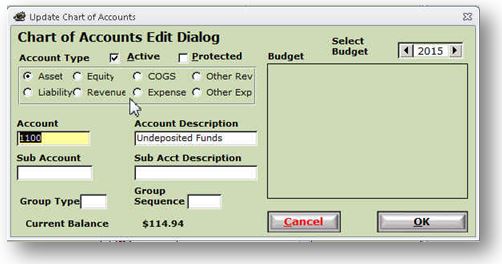
- To Edit an existing account
- Select the account you wish to edit by clicking on and highlighting the account. Select the Edit button
- Active – Tells the system this is an active account that is available for use. Unchecking the Active flag will remove the account from drop down menus and prevent any transactions from posting to it.<
- Protected – Checking the protected flag prevents the account from being selected manually in transactions except manual journal entries. Note – Accounts such as Accounts Receivable, Accounts Payable and Undeposited Funds are used by the system and commonly should be protected.
- Account Type – Tells the system what type of account this is. Note – Account types cannot be changed after the account has been used in a transaction
- Account: - Account number of parent account
- Account Description: - Description of the account.
- Sub Account: Account number of sub account
- Sub Acct Description: - Description of sub account
- Group Type – Indicates which group this account belongs to. Note – Grouping your accounts will group and subtotal them on your financial reports
- Group Sequence – Indicates where within the group this account should be placed.
- To Add a New Account
- Select the New button
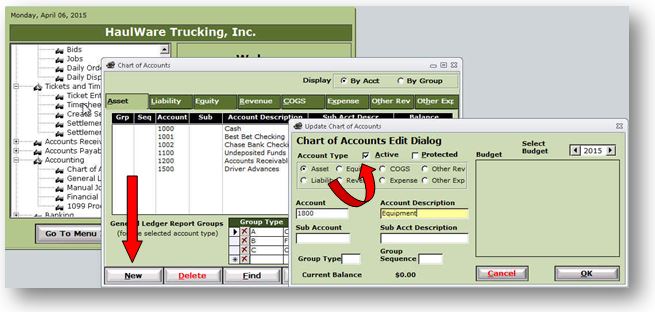
- Select the Account Type
- Select the Active flag
- Optionally select the Protected flag
- Enter the Account Number of the new account
- Enter the Description of the new account
- Optionally enter the Sub Account and Sub Account Description
- Optionally enter the Group Type and Group Sequence
- Select the OK button to save the record and close the screen
Your new account is now ready to use!
To Edit an existing Account
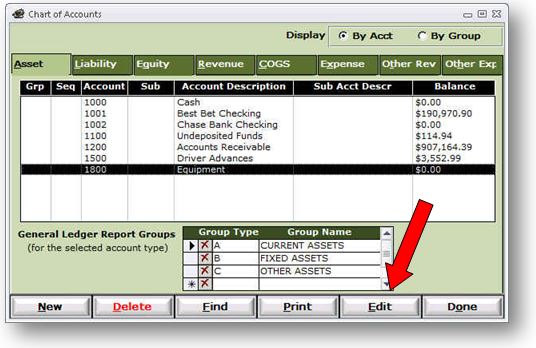
Highlight the Account you want to edit and select the Edit button
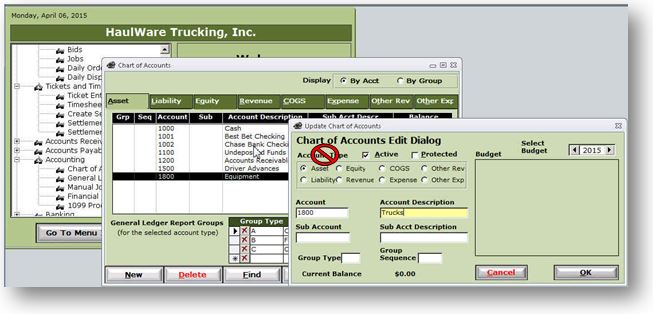
The account number, description, active, protected, grouping and sequencing can all be edited at anytime. The Account Type cannot be changed after the account is in use anywhere in the system
To Delete an account highlight the account and select the Delete button.