Invoice Batch Post
Invoice Batch Posting
Use this option to speed your invoice processing procedure. Invoice Batch Posting is one of the few places in the system the restricts a single user at at time. If another user has this screen open, you will be notified with an option to override and open the screen anyway. WARNING: Two users processing invoices at the same time may have unpredictable results. Be sure only one user is processing at a time.
This process consists of:
- Posting the invoices
- Printing or emailing the invoices
Screen Location - Main Menu > Accounts Receivable > Invoice Batch Post
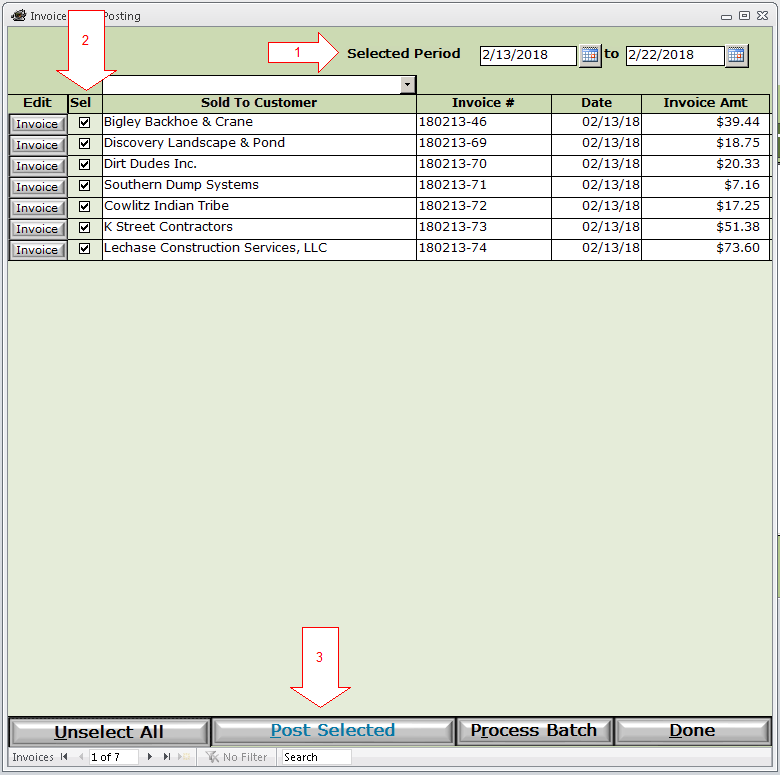
1) If necessary, adjust your Selected Period date range filter.
2) Select the invoices to process, either by clicking the Select All button, or clicking the checkbox in the Sel column for each individual invoice.
3) Click the Post Selected button to Post the selected invoices. After the posting is complete, you will be redirected to the Process Batch screen.
Invoice button - On each invoice line to open that invoice.
Process Batch button - Click this button if you want to bypass posting and reprint one or more invoices in a previously processed batch.
Process Batch - This screen will list all customers who are part of a posting batch.
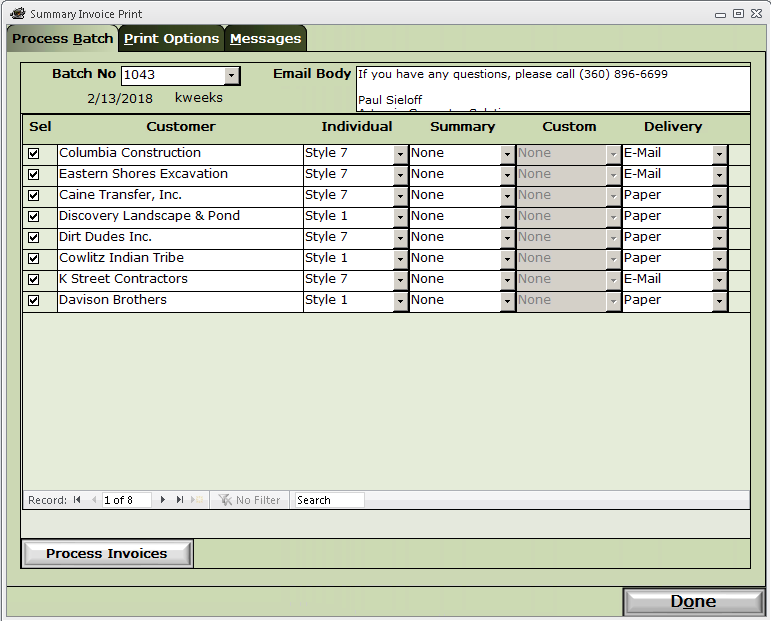
Batch No. - This will be the system-generated batch number assigned to this batch of invoices. Drop down to recall a previous batch. User who created and create date will appear below the Batch No.
Email Body - For emailed invoices, this will be the body of the email.
Sel - Selection checkbox - These will be automatically selected for new batches. Manually select if you are recalling a previous batch.
Customer - Customer name for one or more invoices in this batch.
Individual - This is the standard invoice print style to be used for this customer.
Summary - This is the summary print style to be used for this customer. The customer must have a summary invoice number generated for their invoices by checking the Summary Invoice checkbox in the customer Invoice Processing options.
Custom - Requires custom programming. If HaulWare has provided a custom invoice print style, this option will be available and allow you to select the custom style.
Delivery - This option determines whether your customer prefers a Paper invoice or E-Mail. E-Mail requires that you have have at least one contact in the Contact Information tab with an email address and Email Invoice checked.
Simply click the Process Invoices button to print and email the invoices in this batch for each selected customer.
This completes the invoicing process. You are now ready to Receive Payments from your customers.