Invoices
Invoices
Overview
Although you can manually create an AR Invoice from scratch, invoicing is primarily generated by the Create Invoices option. Generated invoice details are locked and may not be edited by design. This will insure that your billing rates remain consistent and controls inadvertent billing errors.
Start Screen Location - Main Menu > Accounts Receivable > Invoices
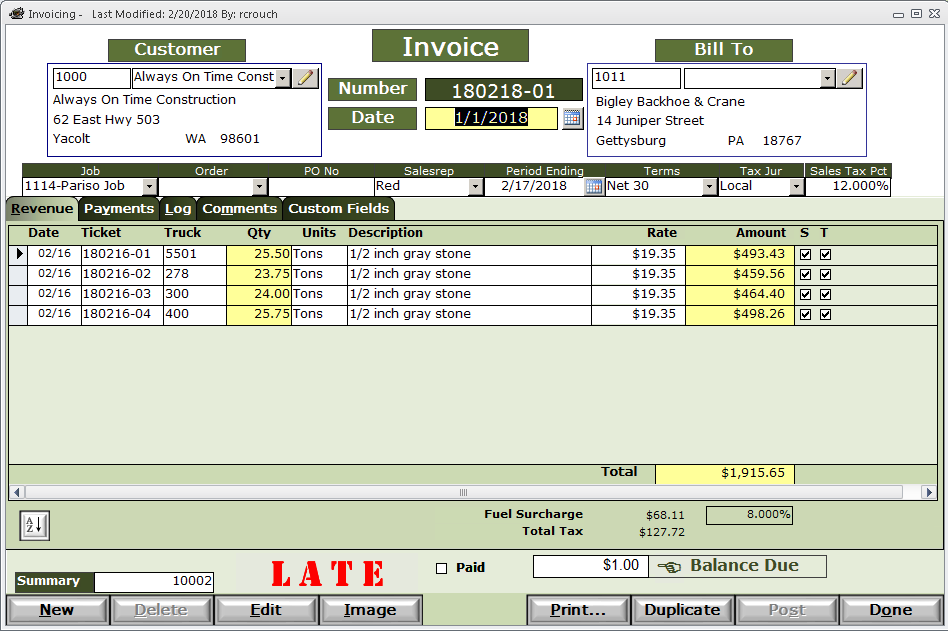
Customer - May be selected by entering the customer number in the upper left box or by selecting the customer by name in the drop down.
Bill To - Billing address for the customer. May be selected by entering the customer number in the upper left box or by selecting the customer by name in the drop down.
Invoice Number - In Company Setup, you may choose an invoice number style.
- Date Style - Date + Seq No. - Date is in YYMMDD format and the sequence number begins at 01 every day.
- Sequence No. - This is a straight sequence number. You may change (advance ahead only) the sequence number in Company Setup. Consider advancing your sequence number far enough ahead of the sequence from your old system so you can easily tell the what system the invoice originated from by looking at the number. For example, last invoice number in old system was 85392. HaulWare should start at number 100000 so you could easily tell it is a HaulWare invoice by the number.
Invoice Date - This is the date that will determine what Financial Period the revenue will be posted to in your General Ledger, and it will also be the aging date used to determine if the invoice is past due and how many days to full payment.
The remaining fields in the invoice header may not be changed on generated invoices.
Revenue tab
On generated invoices, this will list each ticket, other associated information, and the revenue. To delete an invoice line, you will highlight empty box on the left-most end of the line, then click the Delete key on your keyboard. (NOT the Delete button at the bottom!)
Line item fields are self-explanatory.
- The S checkbox is checked when that revenue line has Fuel Surcharge applied to some or all of the revenue amount.
- The T checkbox is checked when that revenue line has Sales Tax applied to some or all of the revenue amount.
Below the line items and revenue subtotal are Fuel Surcharge and Sales Tax. If any of the S or T checkboxes are checked, you should have an amount in those associated totals. If you do not, please check your Fuel Surcharge and Sales Tax tables and be sure you have rates for a date range that your invoice date is in.
Summary - A Summary Invoice number is system generated. It is assigned when the invoice is posted in Invoice Batch Post, and the customer has the Statement Billing checkbox is checked in the Customer > Sales/Invoicing tab. Having a Summary number enables you to:
- Print a Summary Invoice summarizing all of the invoices for this customer that were Batch Posted together in the same batch.
- Apply a customer payment automatically to all invoices with the same summary invoice number.
LATE or PAID stamps - Invoice will be stamped if LATE, not paid in full within Payment Terms, or PAID when invoice is paid in full and Paid checkbox is checked.
Paid checkbox - This is checked automatically by the system when an invoice is paid in full, but may be unchecked manually. You may want to do this if you discover that you received another payment for an already paid invoice. Unchecking the Paid flag will allow that invoice to be available again for payment, and Over Pay to run a credit balance. This credit balance may be written off, as described in the Payments tab below, or applied to another invoice as payment in Receive Payments.
Payments tab - This will list all payments and write offs for this invoice. Once payments equal the original balance, the Paid flag will be checked and invoice will not appear in Collections.
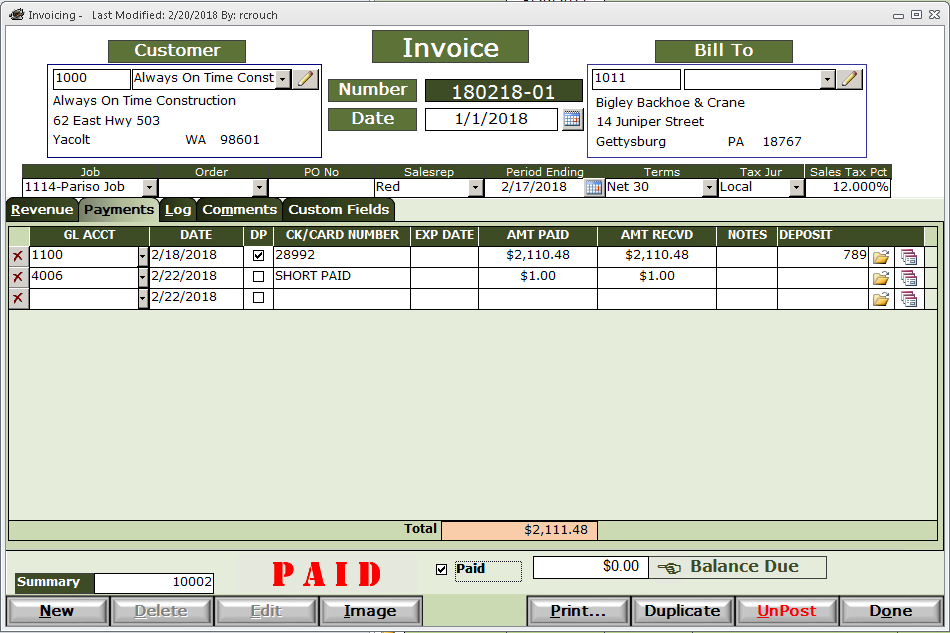
GL ACCT - General Ledger Account - When the payment is recorded in Receive Payments, this GL Account number will be Undeposited Funds (Acct 1100 in example above).
If this is a write off, then something other than Undeposited Funds must be used. For example, the customer paid the wrong amount resulting in a small short payment, not worth recovering. You would select an account such as Short Paid or Revenue Adjustment (Acct 4006 in example above) The original Revenue or Income account may be used but is not recommended. It is up to you or your accountant as to what the appropriate account is to be used. IMPORTANT: NEVER use Accounts Receivable or your Cash/Checking account in this GL ACCT field! This will prevent HaulWare from giving you accurate financial information.
DATE - Payment Date - This determines what financial period this payment will be posted in. The period this date is in must be defined and open in Financial Periods.
DP - Deposit - This box is checked when the payment is to be made available for selection on a Deposit Slip. This box should be unchecked when manually adding a writeoff as a writeoff will not appear on an deposit slip. Although you may manually check and uncheck this box, let the system determine by default when this box is checked or not.
CK/CARD NUMBER - Check or Credit Card number - If this is a writeoff, then you may want to put a very brief description of the nature of the writeoff in this field.
EXP DATE - Expire date - Only used to record the expire date of a credit card in a credit card payment.
AMT PAID - Amount Paid - This is the amount applied to this invoice, although the check amount this payment was on might be higher to include payments for other invoices.
AMT RECVD - Amount Received - This is the check amount and may or may not match the AMT PAID.
NOTES - Reference - Used for any type of reference# or short comment. Same field as REFERENCE in Receive Payments.
DEPOSIT - Displays the deposit slip number this payment in on. Click the Open Folder icon to the right to open that Deposit Slip.
 - Ticket Receipt Detail report - Click to display the tickets this payment covered in case of a short payment. NOTE: You must have detailed out the tickets paid by a check payment in Receive Payments to have any display. A full payment assumes all tickets have been paid.
Log tab - Displays a list of system generated and manually entered log notes. See Log Notes for more information.
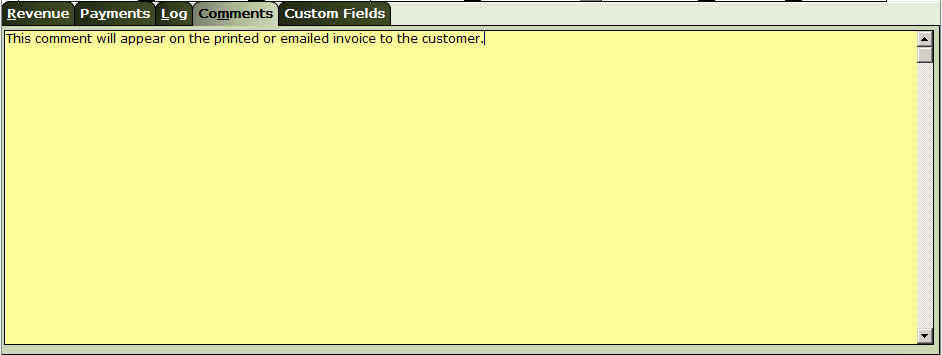
Comments tab - Area for single comment that appears on the printed invoice.
Custom Fields tab - See Custom Fields for more information.