Pay Bills
Pay Bills
1 views
Mar 21, 2026
Updated Sep 01, 2026
Pay Bills
Screen Location - Main Menu > Accounts Payable > Pay Bills
- Double Click the menu item to open the Pay Bills - Supplier Summary window.
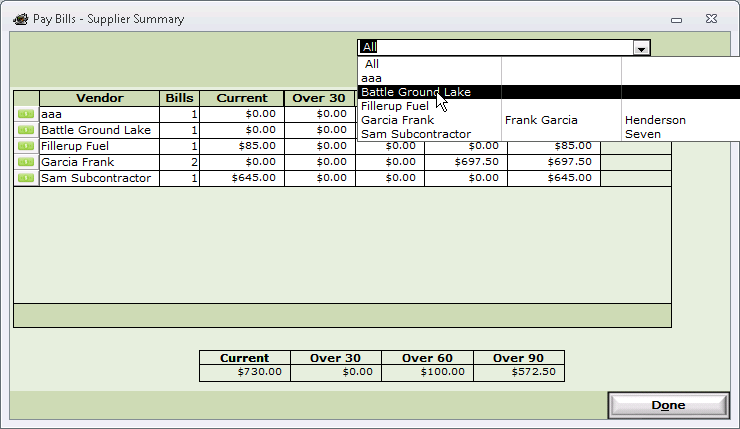
- Select the vendor you wish to pay from the Vendor List.
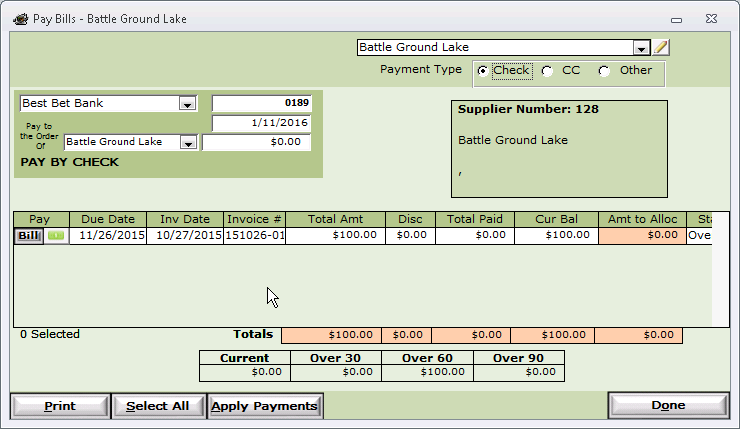
- Note: There are 3 ways to pay a vendor: Check, Credit Card, or Other (ACH, EFT, etc...)
- Select Check to pay by Check
- Select your Bank if it is not the default. This will populate the:
- Check number with the next check number
- Check date with todays date
- Fill in the Amt to Allocate with the amount you wish to pay on the selected invoice. Use the $$ button to allocate the full amount.
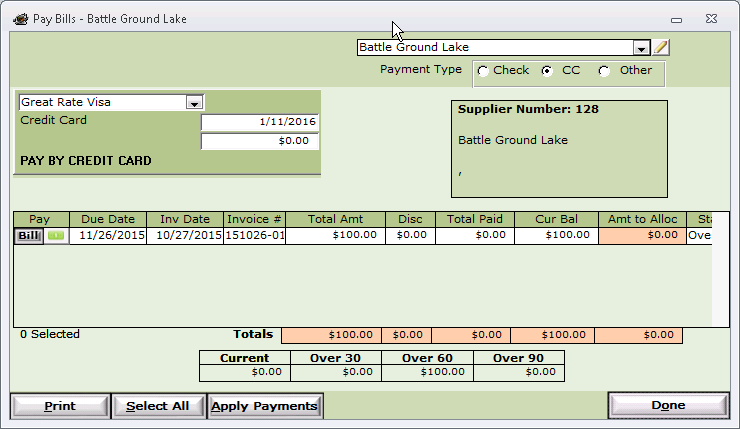
- Select CC to pay by Credit Card.
- Select your Credit Card if it is not the default. This will populate the:
- Check date with todays date
- Fill in the Amt to Allocate with the amount you wish to pay on the selected invoice. Use the $$ button to allocate the full amount.
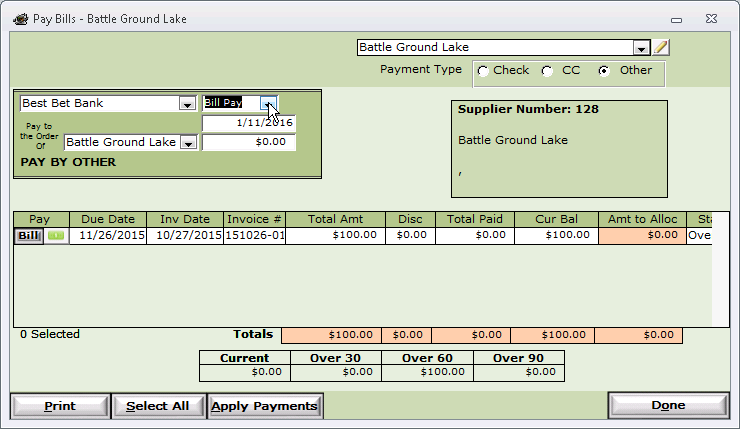
- Select Other to pay by ACH, EFT, Other, etc...
- Select your Bank Account if it is not the default. This will populate the:
- Choose an Adjustment type from the list: Bill Pay, ACH, etc... Note: These are maintained in Setup -> Company Setup.
- Adjustment date with todays date
- Fill in the Amt to Allocate with the amount you wish to pay on the selected invoice. Use the $$ button to allocate the full amount.
Buttons
- Print - Print various reports.
- Select All / Select None - Toggle between selecting all invoices or none.
- Apply Payments - Pay the selected invoices with the amount allocated.
- Note: This will Create a New Entry in Banking. Either a Check or Adjustment depending on how the invoice was paid.
- Done - Exit the screen.