Settlement Batch Post
Settlement Batch Post
Overview
While Driver Settlements can be processed (printed and posted) individually, it is sometimes more convenient to process them in a batch. This option will give you the ability to select some or all settlements in a pay period to be posted, then printed (or emailed).
Screen Location - Main Menu > Tickets and Time > Settlement Batch Post
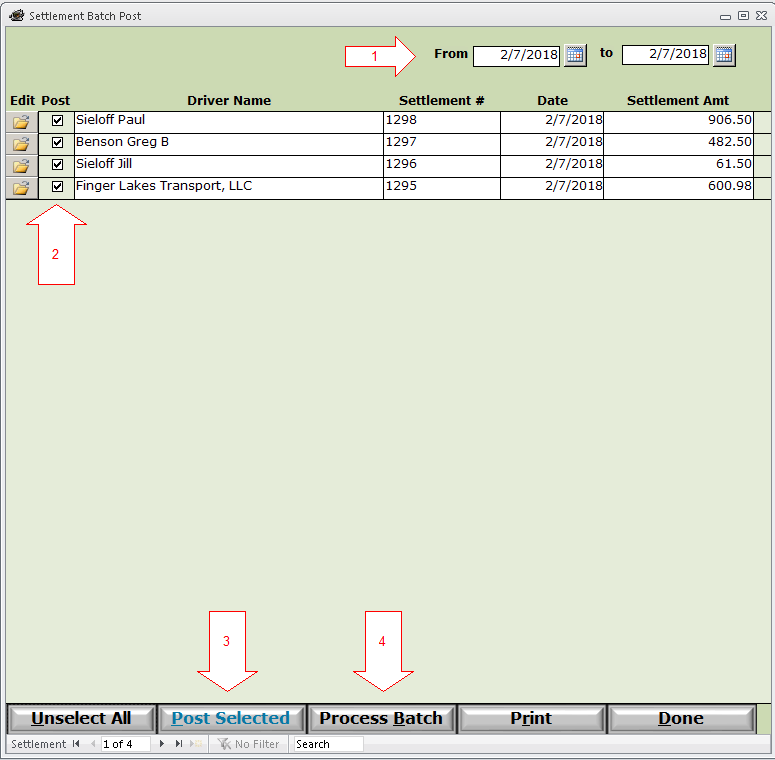
1) Select your pay period date range
2) Select the settlements to be processed, either individually, or by clicking the Select All button in the bottom left. Unselect All will appear to uncheck all selected settlements.
3) Post Selected - This will Post your selected settlements. Once the posting is completed, you will be redirected to the Process Batch screen.
4) If you wish to re-print a batch of settlements, you may by-pass the Post Selected button and click the Process Batch button to recall a previous batch.
Process Batch
This screen is used exclusively to print or email the settlements. Each driver may have a particular Standard print style selected, as well as Delivery method.
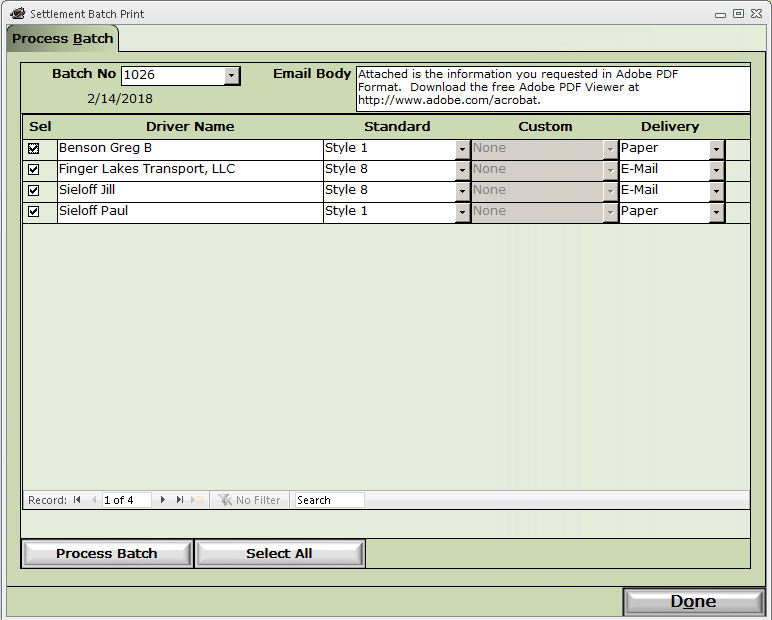
Batch No. - System generated - Assigned to one or more settlements that are posted together in the previous Batch Post screen.
Email Body - This may be changed to anything that will appear in the email body of any settlements that are emailed.
Sel - Check these to indicate which settlements will be printed (or emailed). Use the Select All button to select all items.
Standard - Indicates which print style will be used for this driver. You are also asked if you would like that change to be permanent for all future settlement processing.
Custom - Only enabled when you have a custom HaulWare settlement print style available.
Delivery - Choice of Paper (printed on your printer), or E-Mail. You will also asked if you would like that change to be permanent for all future settlement processing.
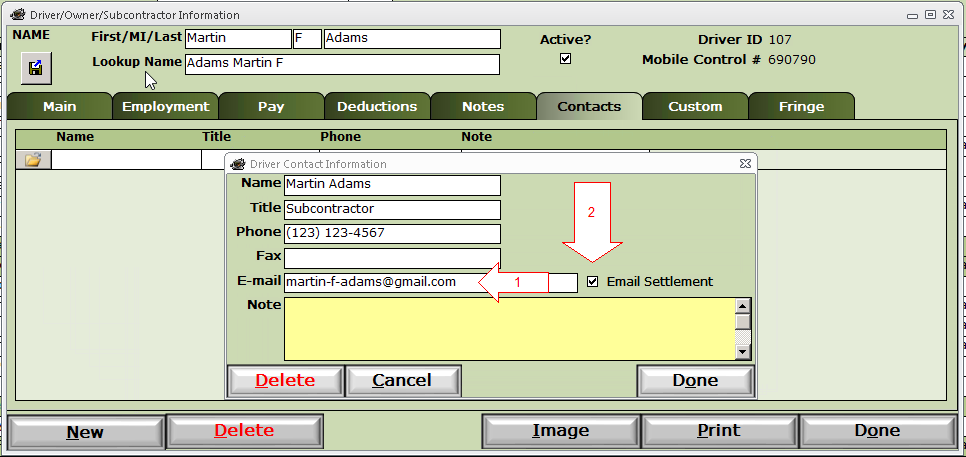
IMPORTANT: E-Mail option depends on one or more contacts, in the Contacts tab, of the Drivers option, to have 1) a valid email and 2) Email Settlement checked.
Process Batch button - Click to Print and E-Mail the selected settlements.
This completes the driver settlement process. You are now ready to print subcontractor checks in Payable Check Run. IMPORTANT: Do NOT leave any settlements unposted from the previous period when starting a new pay period. This will cause your new pay items to be added to your previous pay period settlements!!