Start Screens
Getting Started
5 views
Mar 24, 2026
Updated Sep 01, 2026
Start Screens
These screens are used for master files, such as customer, drivers, vendors, etc.. They open with no records showing until you begin using the filter fields in the top portion to find the existing records you are looking for. Below is an example of the Driver Start Screen.
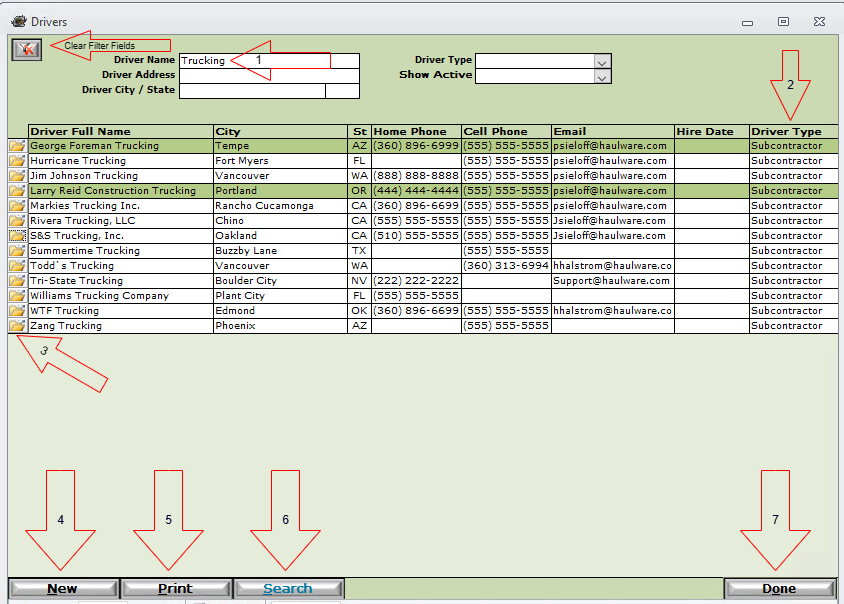
- In this example, we have entered the word Trucking in the Name field. Clicking the Search button at the bottom of the screen will return the results that meet all of the filters. You may combine search criteria and also enter CA as the state to only see the drivers/sub-haulers with the word Trucking in their name and their state is CA.
- You may click on any of the column headers to sort all of the results in first ascending order, then, click the column header again to sort the results in descending order. Only one sort column is active at a time.
- The open folder icon will drill down into that record and open the details window with all specific information about that driver. Any driver line that is shaded with the darker color indicates their record is marked Inactive.
- Click New (Alt-n) to start a new record. A driver number and unique mobile control No. will be assigned automatically.
- Click Print (Alt-p) to print a report of the results currently displaying in the screen.
- Click Search (Alt-s) to re-query the drivers according to the search terms in the top portion of the screen. Click the Clear button in the far upper-left corner to clear all of the filter fields.
- Click Done (Alt-o) to close the screen and return to the main menu.