Ticket Entry
Ticket Entry
2 views
Mar 18, 2026
Updated Sep 01, 2026
Ticket Entry
Screen Location - Main Menu > Tickets and Time > Ticket Entry
- Double click on the menu item: Ticket Entry to open the Ticket Batch start screen. The Ticket Batch start screen displays the last 500 records entered.
- Sort the Start screen by clicking on the column headings.
- Filter the start screen by entering a value in the field above the column headings.
- Open an existing batch by clicking on the file folder to the left of the record.
- Begin a New Batch by clicking the New Button.
Entering a New Batch
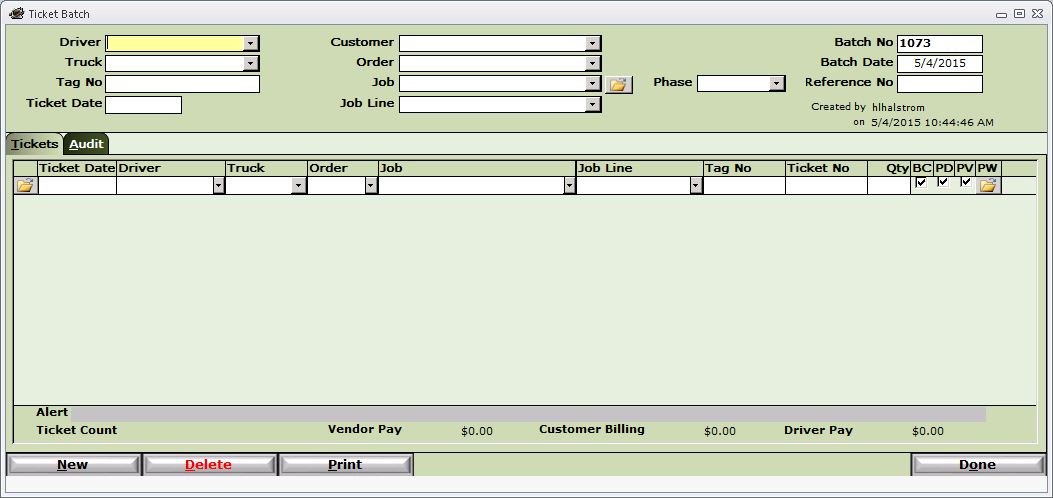
- Ticket Batch Header - The Ticket batch screen is divided into two sections: The top portion (the Header) and the bottom portion (ticket lines). Populating any field in the header will both default that value into all the line items and prevent changes.
- Example - If the batch you are about to enter is unique to one driver, you can enter the driver in the header and all the ticket lines will be populated with that driver. This applies to all the header fields. If you batch has multiple drivers you would leave the header blank.
- Batch Number - The batch number is assigned by the system in sequential order. To change the batch number, double click on the batch number field and the change number dialog will pop up. The batch number can be changed to whatever unique number works for you.
- BC - PD - PV Check boxes
- BC (Bill Customer) - Tells the system that this ticket should be processed in invoicing to bill the customer.
- PD (Pay Driver) - Tells the system that this ticket should be processed in driver settlements to pay the driver.
- PV (Pay Vendor) - Tells the system that this ticket should be processed in Vendor Payables to pay the material supplier.
Ticket Line Items
- Enter Ticket Date, Driver, Truck, Order or Job and Job Line, Tag Number, Ticket Number, and Quantity. Select/De-select the BC, PD and/or PV check boxes as applicable.
- Note - Defaults can be set in the header to reduce duplicate key strokes.
Ticket Line Item Details - Click the Open Folder icon to View/Edit the details of a Ticket
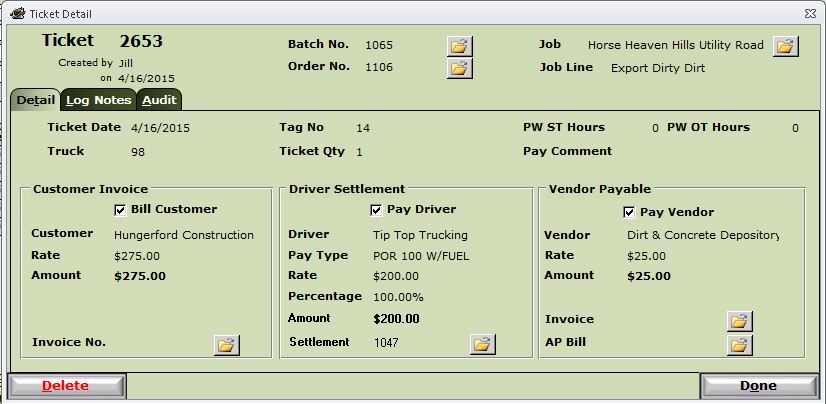
- Note - Once a Ticket has been processed in Invoicing, Settlements, or Payables that portion of the Ticket details is protected and can no longer be edited. If you need to edit a ticket after it has been processed, you must first remove it from the Invoice, Settlement, or Payable record.
- Note - The file folders next to the Batch, Order, Job, Invoice, Settlement, and AP Bill will open the related transaction.