Vendors
Vendors
Vendors fall into 3 distinct categories, subcontractors, and material/dump suppliers, and operations (all other). Although a subcontractor is set up in the Drivers option, a vendor record must also be created.
Start Screen Location - Main Menu > Accounts Payable > Vendors
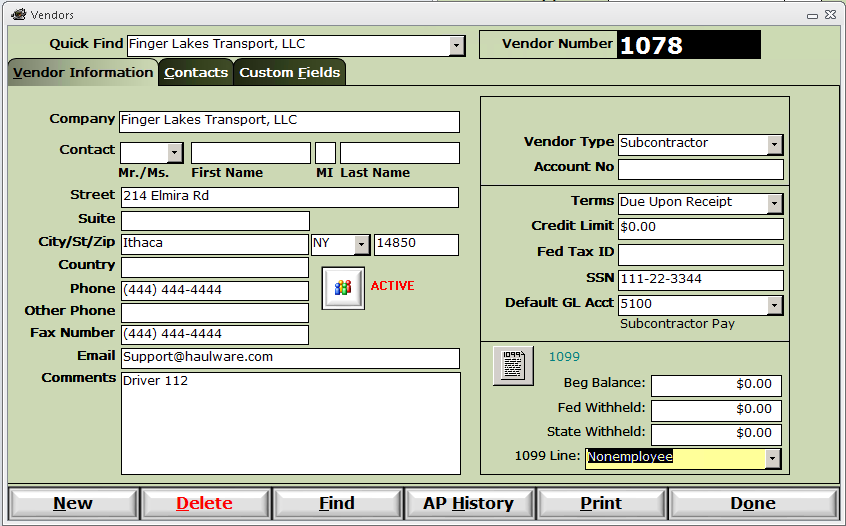
Vendor Number - System assigned - Next number can be advanced in the Company Setup option.
Company - Name and primary contact information including address, phone and email.
Vendor Type - Identifies the category of this vendor.
- Subcontractor
- Material/Dump supplier
- Operations - all other
Account No - This is the vendor's customer account number for your company.
Terms - Select payment terms from available options set up in the Company Setup option. Used to determine Due Date.
Credit Limit - Your credit limit with this vendor.
Fed Tax ID - Federal Tax ID - If vendor has a Tax ID, otherwise SSN.
SSN - Social Security Number - If individual or sole proprietorship or has no Fed Tax ID for 1099.
Default GL Acct - Default General Ledger Account - This will be the default expense account for any AP Bill entered for this vendor. This expense account will automatically fill in when entering a Bill for this vendor. For example: When entering a Payable for a bill from the phone company, you will always want that payment to be under the Telephone expense account without having to select it every time.
 - 1099 - Toggle this button to indicate if the vendor will require a 1099 or is 1099 Exempt. Vendor with their 1099 button toggled to Exempt will not be part of the 1099 Processing.
- Beg Balance, Fed Withheld, State Withheld - These fields are to supplement with 1099 amounts from your previous system in the first year of using HaulWare.
- NOTE: After running your 1099s the first year, you will want to click the Clear Beginning Balances button in the 1099 Processing option.
- 1099 Line - NOTE: HaulWare 1099 print will only support the 1099-NEC option.
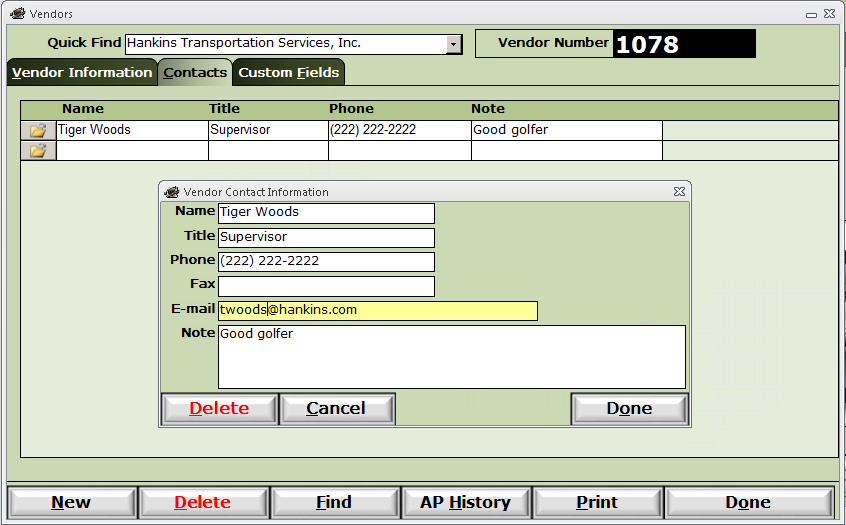
Contacts tab - Click the open folder icon on the last blank line to add a new contact.
AP History button - This will give you a quick view of all AP history with this vendor.
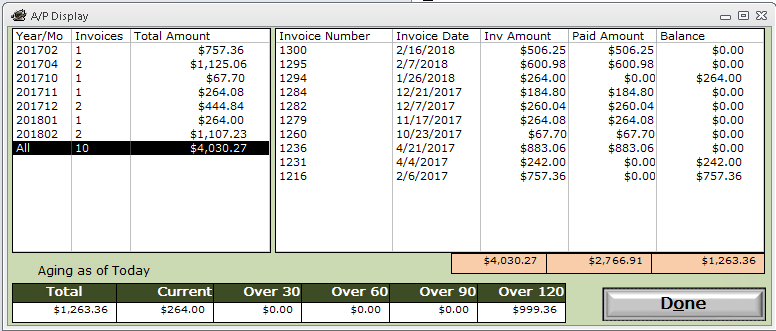
The left pane contains a line for each month, as well as a line for All bills.
- Click on any line in the left pane to see the details for that month in the right pane.
- Click on any line in the right pane to see the individual AP Bill.
Custom Fields tab - See Custom Fields for more information.