Create Driver Settlements
Create Driver Settlements
Overview
One of the most powerful features of HaulWare is to create driver settlements as a result of Ticket Entry. Settlements can be generated from the tickets themselves, as in the case of pay based on tonnage or percent of revenue. Settlements also can be generated from Driver Time.
Screen Location - Main Menu > Tickets and Time > Create Settlements
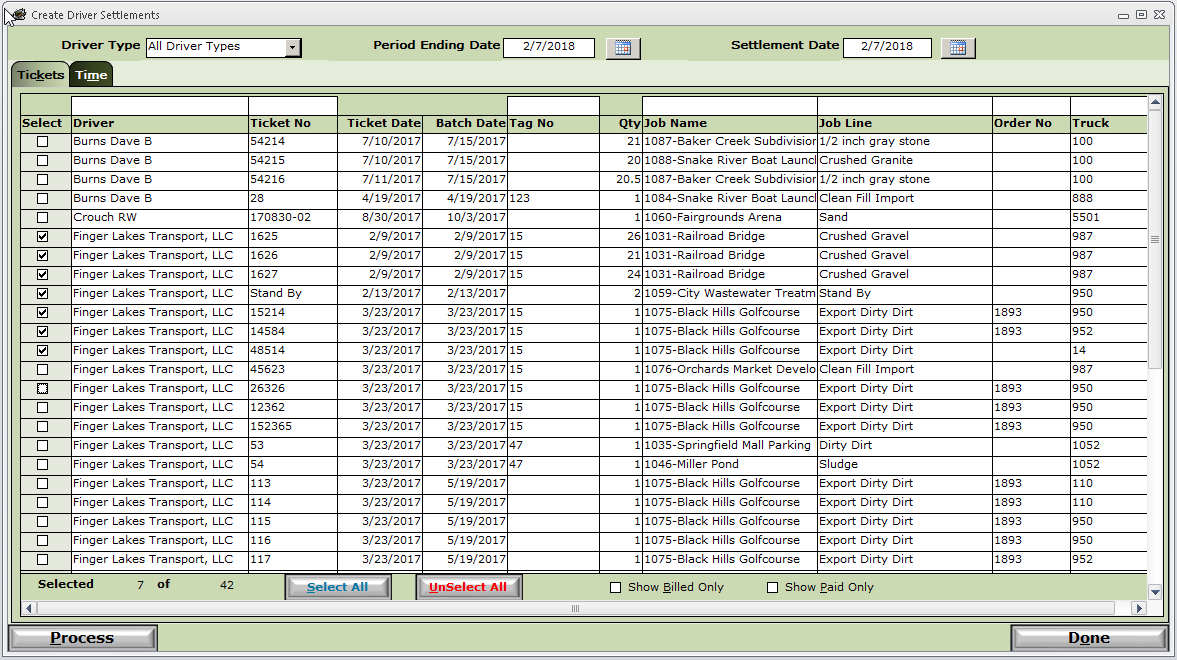
NOTE: This screen will initially appear blank until you select a Period Ending Date. Also notice there are 2 tabs, Tickets and Time. The Tickets tab will show tickets with non-hourly driver pay. (Percentage of Revenue, Tonnage, etc). The Time tab will contain timesheets for drivers with hourly pay.
Driver Type - This option will give you the ability to pay only subcontractors, or only company drivers, or any other driver type you may have. This would give you the ability to pay your company drivers and subcontractors on different pay cycles.
Period Ending Date - This date will determine what tickets and timesheets will be eligible to be paid.
Settlement Date - This will be the settlement date for any new settlements created when processing these selected tickets and timesheets.
IMPORTANT: Be sure to Post all Settlements once they are completed for that pay period. UnPosted settlements will have more tickets added from the next pay period that would mix already paid tickets from the previous period with new unpaid tickets from the new period. Do not make this mistake!
Tickets tab - This will show tickets with non-hourly driver pay. (Percentage of Revenue, Tonnage, etc)
Select - Check the tickets in the left-most Select column you want to pay to your drivers. If you want all of the tickets, simply click the Select All button in the lower middle part of the screen. Click UnSelect All to clear the check boxes on all of the tickets.
Show Billed Only - Check this box to only show tickets that are on invoice to the customer, whether it was paid or not.
Show Paid Only - Check this box to only show tickets that are on invoice to the customer, but it must be paid.
Time tab - This will show timesheets with hourly pay for drivers.
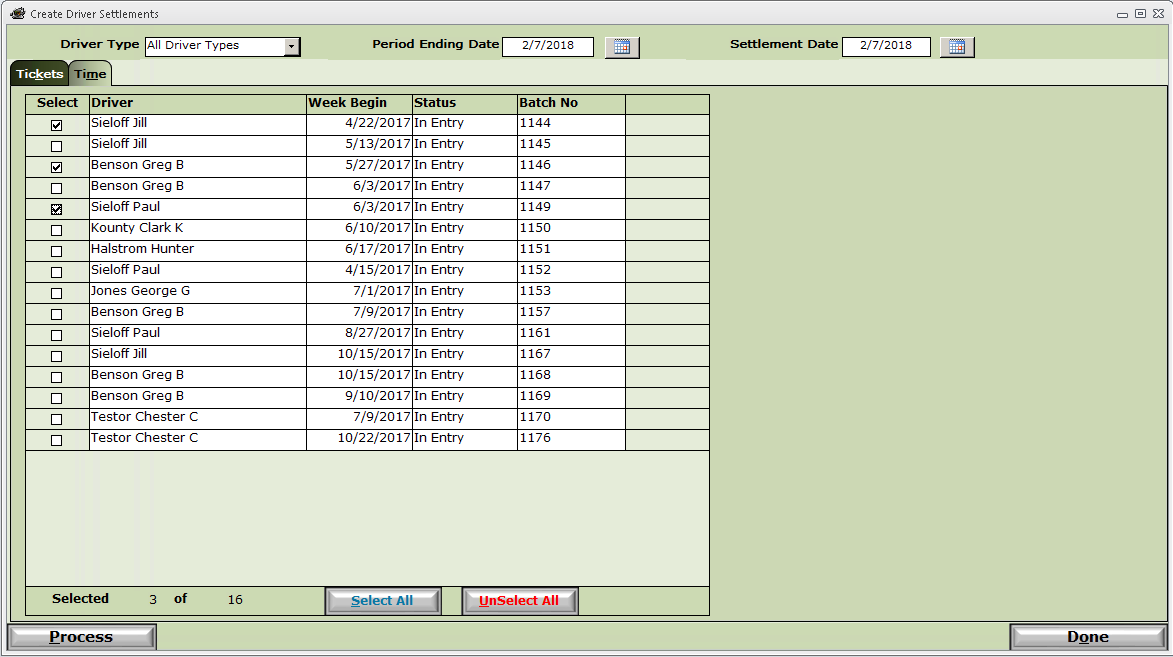
Select - Check the timesheets in the left-most Select column you want to pay to your drivers. If you want all of the timesheets, simply click the Select All button in the lower middle part of the screen. Click UnSelect All to clear the check boxes on all of the timesheets.
Process button - Click to create settlements from the selected Tickets and Timesheets. See Driver Settlements. Print and Post settlements to complete the driver pay process.