HaulWare 7.09a Release
What's new in HaulWare 7.09a?
Version Coverage: 7.09a.105 through 7.09a.144 (January 2026 – April 2026)
Overview
HaulWare 7.09a introduces fundamental improvements to Fuel Surcharge management, Settlement processing, Order handling, and data validation. This release focuses on enhancing core functionality and improving overall system stability.
---
FUEL SURCHARGE (FSC) ENHANCEMENTS
Q: What are the key FSC changes in 7.09a?
A:
- Rate Schedule Validation: Prevents overlapping or gapped date ranges
- Invoice FSC Display Changes
- Pay Driver FSC: Now available for all calculation methods
- Barcode display on invoices is now controlled via the ShowFBBarCode switch across all print styles ( Main Menu > Setup > Company Setup > Switches )
Q: How do I set up FSC rates without overlaps?
Instructions:
1. Navigate to Setup → Fuel Surcharge Rates

2. Click New to add a rate

3. Enter an effective date range with no gaps
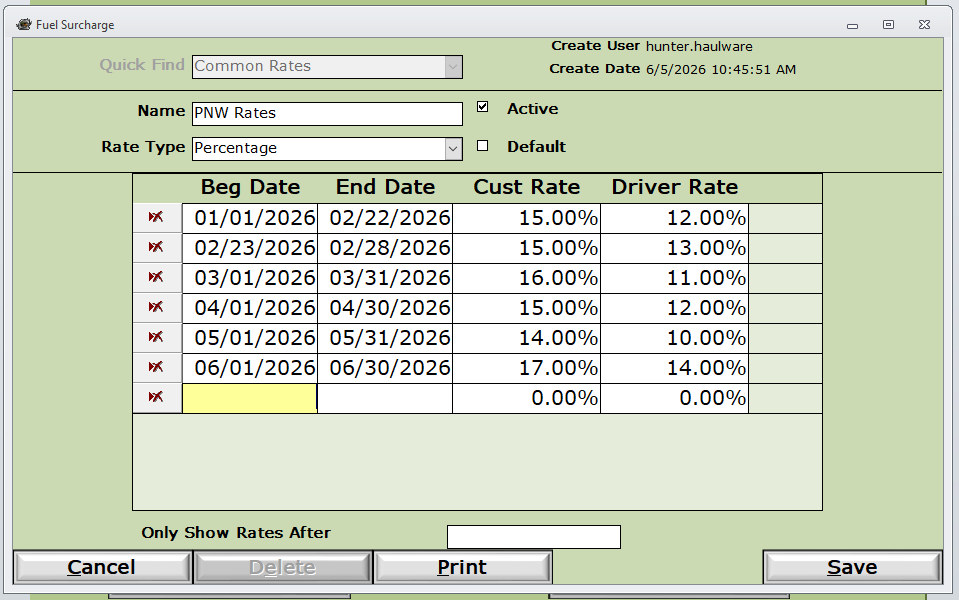
4. The system will prevent saving if dates overlap or contain gaps
5. Adjust the dates and try again
Q: What changes were made to Invoice FSC display?
A:
- When FSC ≠ 0: Shows "Fuel Surcharge:" label and amount (logo/address shifts right)
- When FSC = 0: FSC is hidden
- No manual per-invoice setup needed — works automatically
Q: Is Pay Driver FSC still limited to certain calculation methods?
A: No. In 7.09a, Pay Driver FSC is now available for all calculation methods.
FSC Red Line Indication on Create Invoice
Q: What does the red line indicate on the Create Invoice screen? A: The red line is a visual warning that there is an issue with the FSC setup for that ticket and does prevent invoicing.
Q: Why do my tickets show a red line? A: Common causes:
- FSC Schedule does not cover the ticket date (gap or expired)
- No FSC Schedule assigned at Job or Job Line level
- FSC selected but no rate schedule configured
Q: How do I fix tickets with red line warnings? Instructions:
- Identify the ticket(s) with the red line
- Go to Setup → Fuel Surcharge Rates and verify the schedule covers the ticket date
- Open the Job and confirm FSC schedule assignment (Job level or per Job Line)
- Return to Create Invoice — the red line should clear once resolved
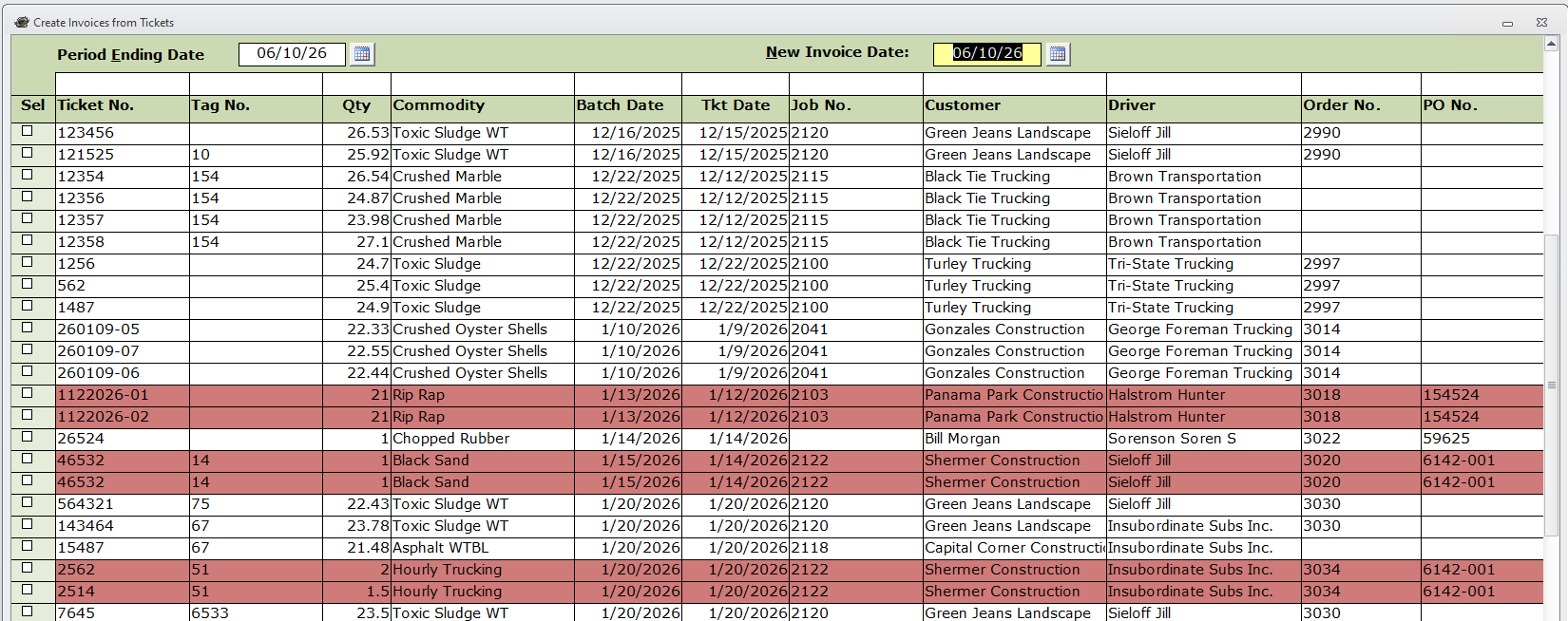
Q: Can I still invoice a ticket with a red line? A: No. You must resolve the issue first so FSC calculates correctly.
Q: Can I have different FSC rates on different lines of the same job? A: Yes. Set a default at the Job level, then override per Job Line using the FSC button.
---
SETTLEMENT & BILLING
Q: What's new with Settlement printing?
A:
- Style 10: New settlement print style added (Styles 1–10 now available)
- Check Numbering: Improved in Pay Bills and Payables Check Run
- Online Payments Report: Brand new report with date range, status, and customer filters
Q: How do I print using the new Settlement styles?
Instructions:
1. Open Create Settlements
2. Select the settlement(s) you want to process
3. Click Print
4. Choose the desired style (1–10) in the Report Selector
6. Print or email

Q: What does the Online Payments Report show?
A: It displays online payment transactions with filters for:
- Date Range
- Is Processed (Yes/No)
- Customer (specific or all)
---
ORDER MANAGEMENT
Q: What are Location Instructions?
A: A new feature that lets you attach special instructions to specific From/To locations within an order (up to 253 characters per location).
Q: How do I add Location Instructions?
Instructions:
1. Open the Order screen
2. Go to the From/To Location section
3. Click the Zoom button (magnifying glass) on the Instructions field
4. Enter your instructions (up to 253 characters)
5. Instructions will appear read-only on Order Dispatch screens

---
Deduction Schedules
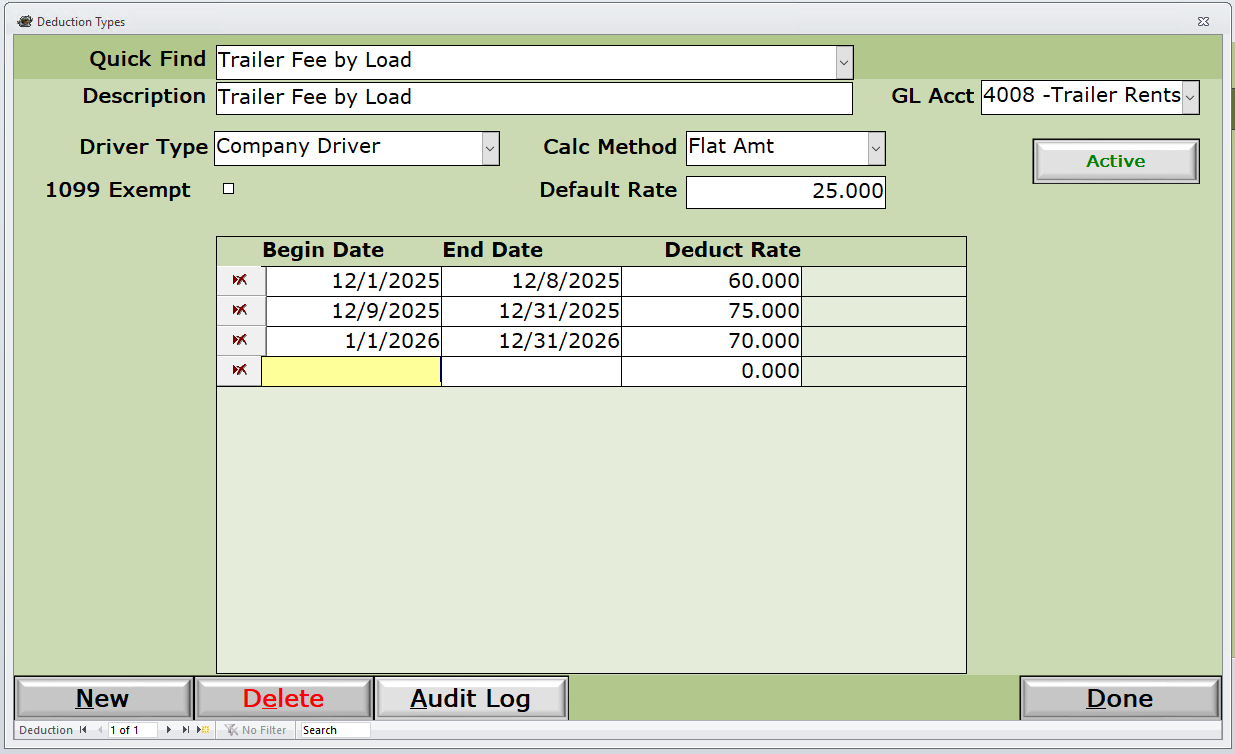
Q: What are Deduction Schedules in 7.09a? A: Deduction Schedules define when and how employee/driver deductions apply:
- Set effective date ranges for deductions
- Manage multiple deduction schedules concurrently
- Enforce no gaps or overlaps in date ranges (similar to FSC schedules)
- Track deduction amounts by date period
Q: How do I create a Deduction Schedule? Instructions:
- Navigate to Setup → Deduction Types
- Select the deduction type from the list
- Click New to add a schedule entry
- Enter:
- Effective From date
- Effective To date
- Default Rate (required)
- GL Account (required)
- Driver Type (required)
- The system prevents overlapping date ranges
- Save and exit
Q: What validation rules apply to Deductions? A:
- Description: Required
- GL Account: Required
- Driver Type: Required (cannot be changed if used in tblDeductionLink)
- Default Rate: Required (zero is allowed)
- Effective Dates: No gaps or overlaps allowed
Q: Can I change the Driver Type on an existing deduction? A: Only if the deduction is not linked to any records. If it has been used, the change is blocked. Create a new deduction with the correct Driver Type and mark the old one as inactive.
Q: How do Deductions appear on settlements? A: Deductions appear as separate line items on settlements with the applied amount and GL account. They do not automatically trigger the 1099 flag.
---
Check Numbering in Bank Accounts
Q: What changed with Check Numbering in 7.09a? A: The system moved from dynamic calculation to a stored value in the Bank Account record for better user control and auditability.
Q: How do I view or change the Next Check Number? Instructions:
- Navigate to Banking → Bank Accounts
- Select the desired bank account
- View or edit the Starting Check Number field
- The system validates that the number has not already been used
- Save changes (an audit entry is logged)

Q: Why are my check numbers skipping? A: Common causes include manual check entry, deleted checks, or switching vendors in Pay Bills (most issues were resolved in later 7.09a builds).
Q: What warning appears when deleting a check? A: The system displays:
"Be sure to adjust the Next Check Number for this Bank Account if necessary."
Recommendation: After any manual checks or deletions, update the Starting Check Number in the Bank Account screen.
---
TICKET & AUDIT IMPROVEMENTS
Q: What ticket validation enhancements were added?
A:
- Job Line Validation: Ensures the selected job line actually exists
- Ticket Date Range: Enforces ±30 days from current date
- Batch Date Validation: Prevents posting with invalid or future dates
---
JOB & INVOICE MANAGEMENT
Q: How are Job Numbers displayed differently?
A:
- Job Number and Job Name are now separate sortable and filterable columns
- Improved layout and spacing on Ticket detail screens
Q: What's new with Payment Links?
A:
- Enabled on all 8 Freight Bill print styles
- Respects the NoPaymentLink custom field
- Works on both posted and unposted invoices
Q: How do I disable Payment Links for specific invoices?
Instructions:
1. Open the invoice record
2. Set the custom field NoPaymentLink = 1
---
USER INTERFACE & STABILITY
Q: What UI improvements were made?
A:
- Click column headers to sort (click again to reverse)
- Double-click default column to reset sort
- Custom fields now fully support sorting
- Image Highlighting: Buttons highlight when images are attached to records
---
FAQ - COMMON QUESTIONS
Q: Can I selectively enable 7.09a features?
A: Most features are enabled automatically.
Q: Will my existing FSC schedules still work?
A: Yes, but check for date gaps first. The system now prevents new gaps after the upgrade.
---
SUPPORT & RESOURCES
- In-App Help: Press F1 on any screen
- Contact Support: support@haulware.com or (360) 896-6699