Locations
Locations Management
After clicking New or selecting an existing driver from the Location Start Screen, you will fill out the Detail screen.
A location is anywhere the truck may go, including job sites, quarries, pits, and yards.
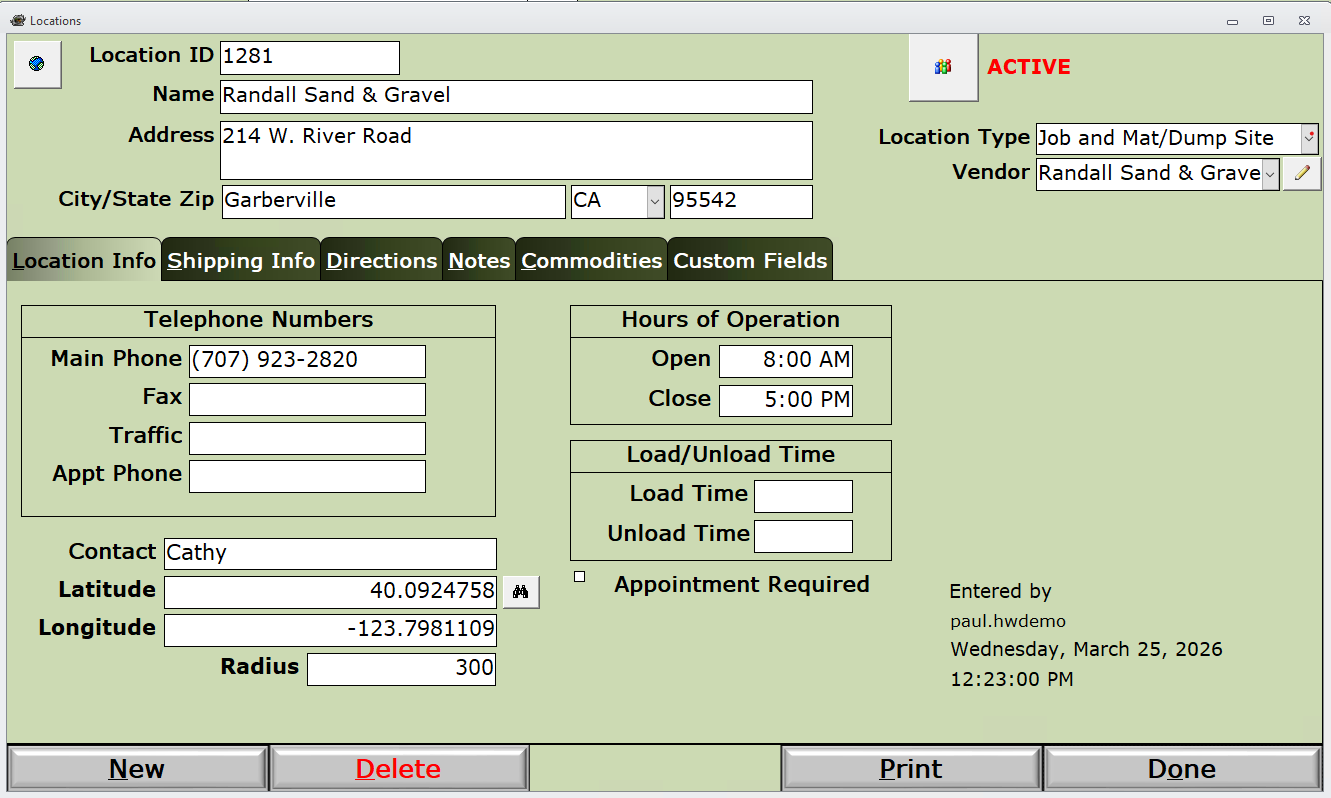
Globe button - This will open a Google map of the address location, or the Lat/Long coordinates if available.
Location ID - This is generally system assigned but maybe user assigned after clicking the New button.
Address info - If no address is available, use city/state/zip.
Active - Click the button to toggle the record activate. Deactivated records will no longer appear on the dropdown lists.
Location Type - Indicates if a Job Site, Material Site, both, or Other.
Vendor - In the event that you will be paying the location for materials, dump fees, etc., select an AP Vendor record to be used in the AP Bill payment transaction. If no related Vendor exists, and the Vendor field is empty, click the pencil box button to create one using the name and address info in this location record. If there is a value in the Vendor field, use the same pencil box button to open the Vendor detail record for that vendor.
Binoculars button - click that to force an update to the Lat/Long coordinates for the address information above.
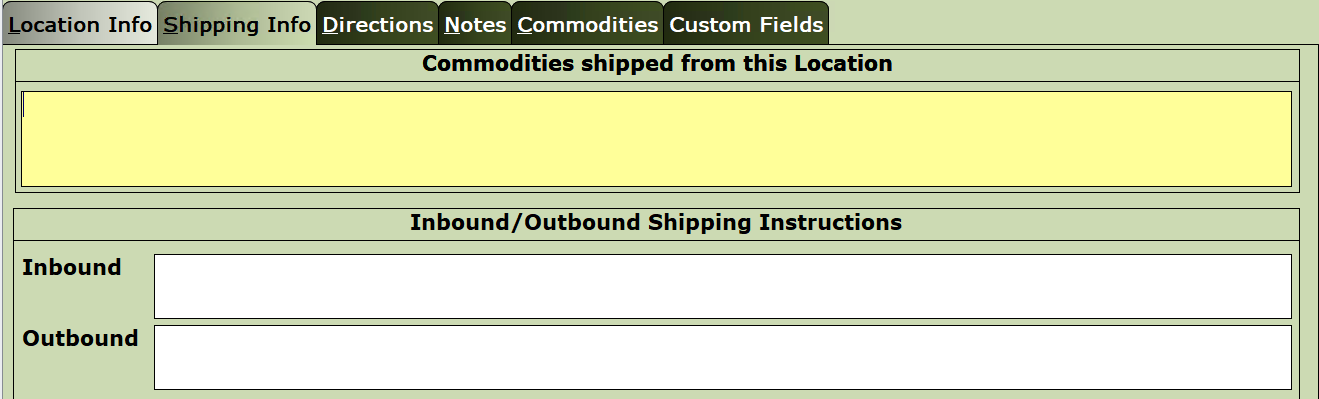
Shipping Info tab - this information is no longer used and will be retained for a period of time for backward compatibility. See the Commodities tab for Commodities.
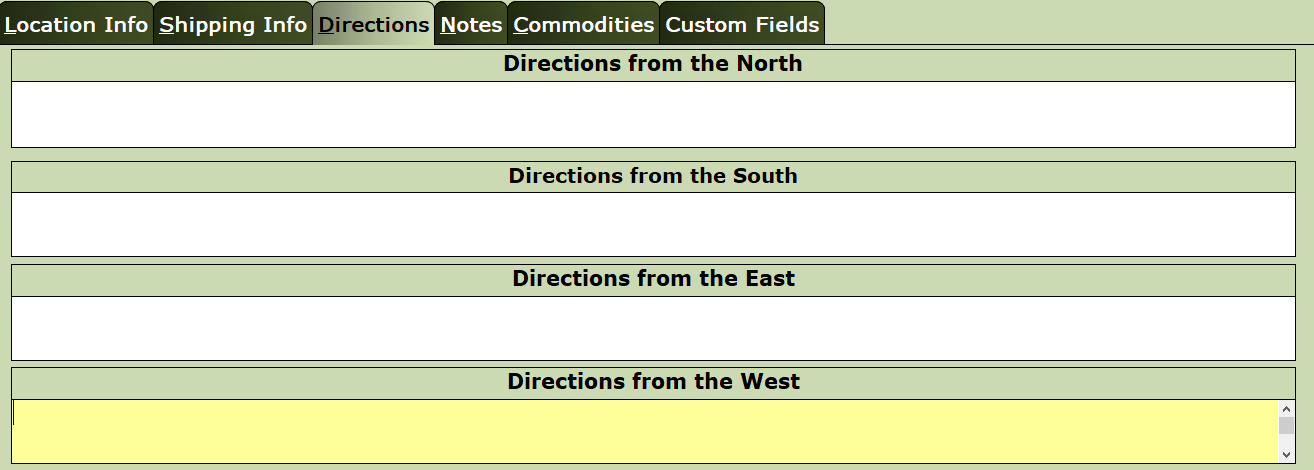
Directions tab - This information is no longer used and will be retained for a period of time for backward compatibility.

Notes - Record any notes about this location. Enter a new note on the last blank Note line.
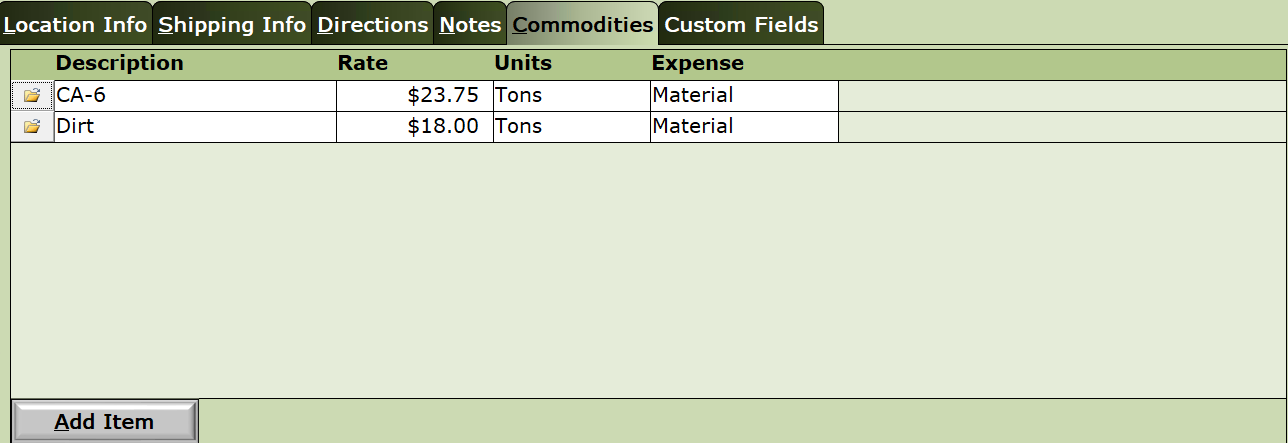
Commodities - List of commodities and last saved price per unit of measure for this location. Where this is a view of the commodities for a location, see Commodity Items for a different view this information showing all locations and pricing for each commodity.