Equipment
Equipment Management
Main Menu -> Files -> Equipment
Click the New button or the open folder icon on an existing record on the Start Screen to open the Equipment detail screen.
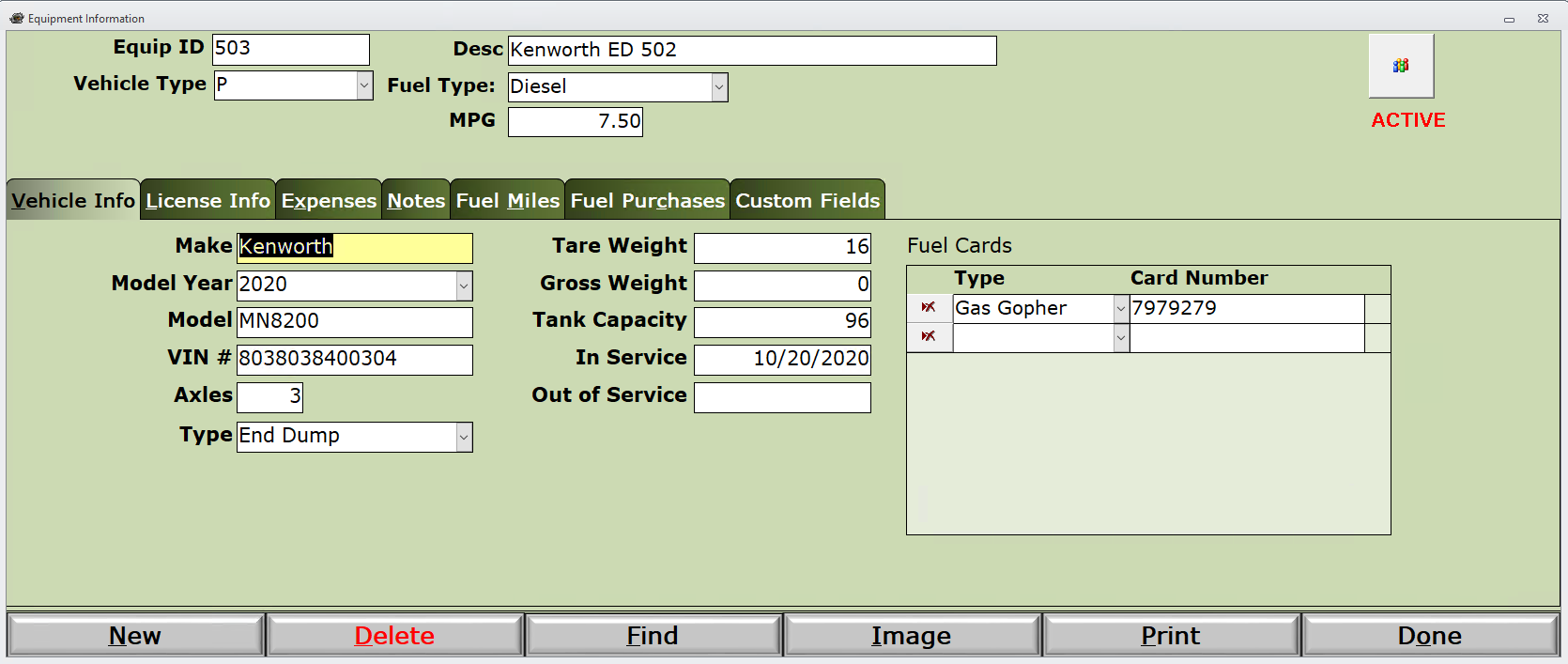
Equip ID - A unique identifier for this piece of equipment. Maybe both alphabetic and numbers combined.
Desc - Description of equipment
Vehicle Type - P = Power unit T = Trailer
Fuel Type - Diesel, Gasoline, or Propane
MPG - this can be a calculated figure if you use both the Fuel Miles and Fuel Purchases tabs.
Active - Click the button to toggle the Active status. Inactive items will not appear in Equipment dropdowns.
Make, Year, Model, VIN#, Axels, Weights, Capacity and Service dates are all optional
Type - Select from the dropdown of Equipment Types.
Fuel Cards - If the fuel card stays with the truck, then use this list to identify the Fuel Account and Card Number
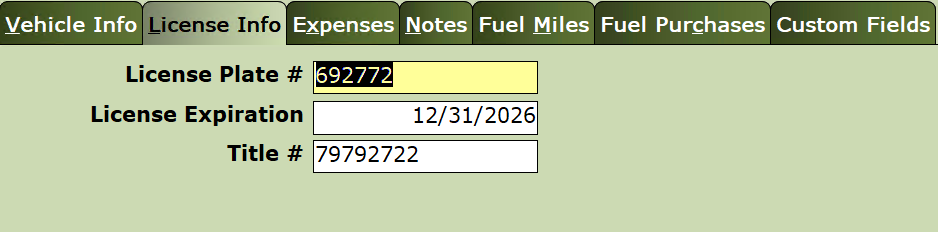
License Info - Record the License Plate #, expiration date, and title#.
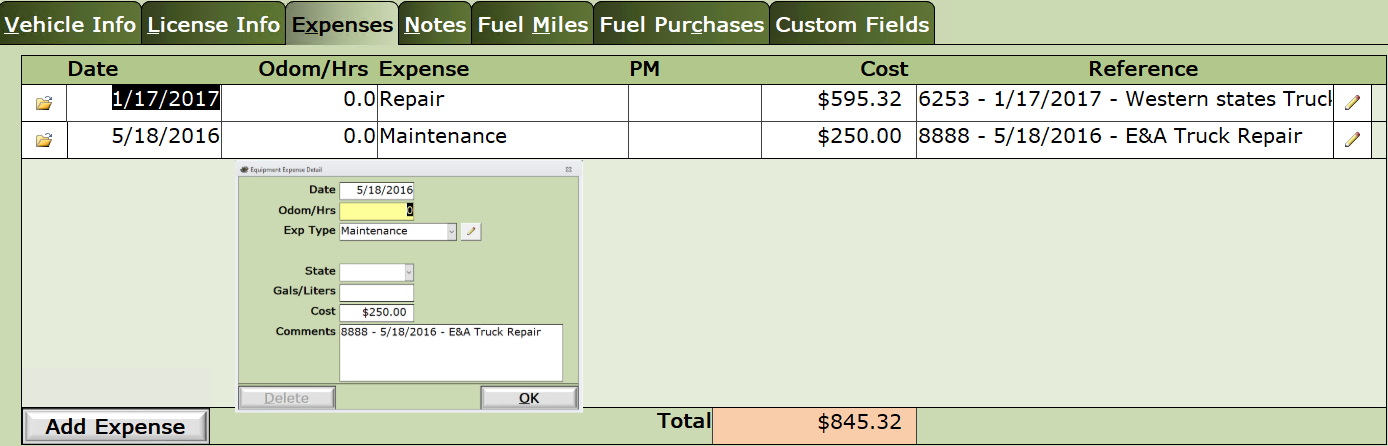
Expenses - Record expenses for this equipment.
- Expenses may be manually entered or updated from an AP Bill, Fuel Account Management transaction or Manual Journal Entry.
Open Folder button - Opens the expense details screen for an existing expense.
Pencil button (right side) - Opens the expense transaction if originated from AP Bill, FAM or MJE.
Add Expense button - Opens a blank Expense Detail window for manual entry.
- No other system transaction required.
- Has no effect on the General ledger

Notes - Click the Open Folder icon to enter a new Note or edit / delete an existing note.
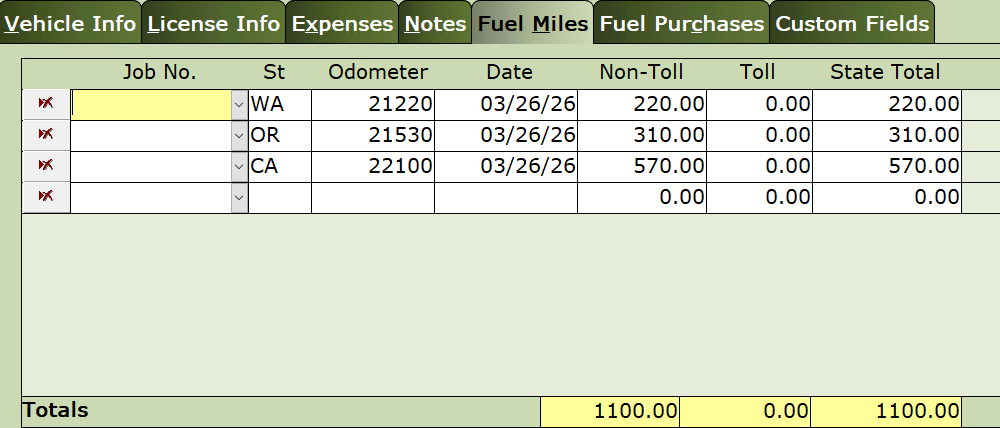
Fuel Miles - In the event you need to report IFTA for interstate coverage, use this Fuel Miles tab to record miles in each state, and the Fuel Purchases tab to record gallons of fuel purchased in each state.
Job No. (Optional) - If you wish to associate these miles with a particular job.
Enter State, Odometer, Date, Non-Toll, and/or Toll for miles in each state.
State Total - System will add both Non-Toll and Toll miles for the total in that state.
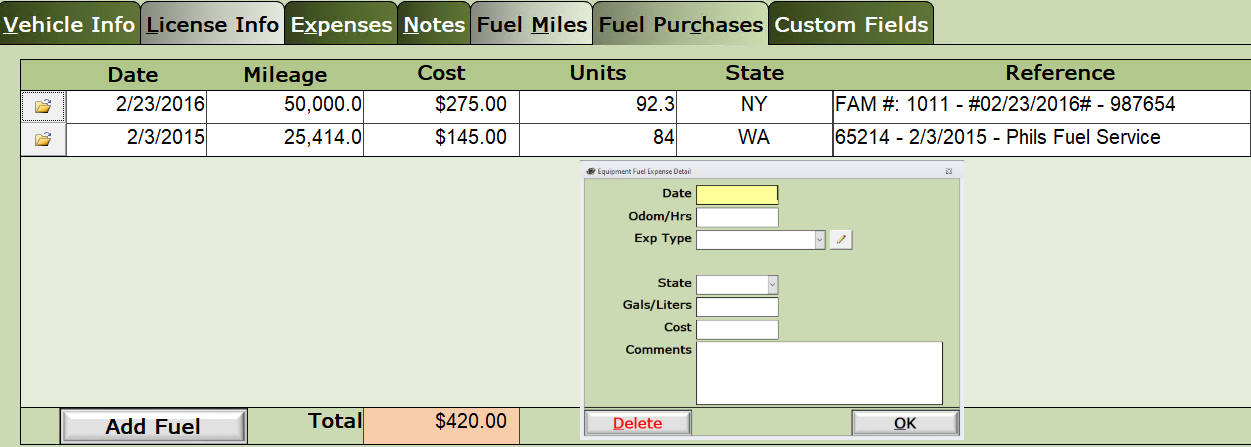
Fuel Purchases - Used in tandem with Fuel Miles to provide information for IFTA reporting.
- See the Reports > Other Reports > State Fuel Miles and Purchases report to gather your IFTA reporting information.
Open Folder button - Opens the originating transaction for this fuel purchase. Fuel Account Management, AP Bills or Manual Journal Entry.
Add Fuel button - Opens the Equipment Fuel Expense Detail window for manual entry. This has no effect on the General Ledger.
Custom Fields - See this article for more information.